FTH User Manual
Find the Hits. Feed the Hobby.
What FTH does for you
FTH (Find The Hits) is a trading card app for iPhone and iPad. It keeps track of every card you own: what you paid, what it is worth, where it is stored, and what you sold it for. This manual explains every screen, button, and setting in the app, how to use each one step by step, and what it does for you as a collector or a seller.
Here is what FTH gives you:
- Cards in your collection in seconds. Photograph the front and back of a card and Magic Scan fills in the player, year, brand, set, card number, and sport. Scanning runs on your phone, works without internet, and is unlimited on every plan.
- Slabs filled in for you. Scan a PSA slab and FTH reads the barcode and fills in the card from PSA’s own record, including the grade and cert number.
- A whole stack at once. Batch Magic Scan lets you photograph card after card and review them all at the end.
- Your money in one place. Track purchase price, grading fees, and shipping for each card, so FTH can show what you have invested, what your cards are worth, and your profit or loss.
- Real market prices. Look up prices from SportsCardsPro and jump to 130Point or eBay sold listings to compare.
- A display case in your pocket. Show Mode turns your phone or iPad into a full-screen display for suitcase sellers at card shows. Buyers swipe through your for-sale cards while your case stays closed.
- Sales on record. Record single sales or batch sales with the buyer and the place you sold, and see your revenue, margins, and best customers.
- Organized your way. Custom Collections, Smart Collections that fill themselves, Set Checklists that show what you still need, a Wishlist you can share, and a Grading Tracker for submissions.
- The hobby around you. Find card shows near you, read hobby news, see upcoming releases, and watch hobby YouTube channels.
- Your data stays yours. Your collection lives on your device and syncs through your own iCloud account. You can back it up, export it to a spreadsheet, and lock the app with Face ID.
FTH is free to use. The optional FTH Pro subscription removes the free limits and adds analytics, reports, and selling tools. See the section “FTH Pro: free versus Pro.”
1. Getting started
FTH runs on iPhone and iPad with iOS 18 or later. Download it from the App Store, where it is listed as FTH Cards.
When you open FTH, the FTH logo shows for a moment, then the app opens. What you see first depends on whether you have signed in:
- Not signed in: two tabs, Discover and Account. See “Browsing as a guest and signing in.”
- Signed in: the welcome tour the first time, then the four main tabs: Dashboard, Collection, Discover, and Settings.
Permissions FTH asks for
FTH asks for an iPhone permission only when a feature needs it, never all at once at the start.
- Camera. Asked when you start Magic Scan or take a card photo. Used to photograph the front and back of your cards. If you say no, Magic Scan shows Camera Access Required, and you can still add photos from your photo library.
- Photos. Asked when you tap Library to add a photo. Used to pick photos of your cards you already took. If you say no, you can still use the camera.
- Location (while using the app). Asked when you search for card shows Near Me. Used to find shows within the distance you pick. If you say no, you can use By State (FTH Pro) instead, or allow location later in your iPhone’s Settings app.
- Face ID or Touch ID. Asked when you turn on App Lock. Used to unlock FTH. If you say no, App Lock is not turned on.
What it gives you: you decide what FTH can use, one feature at a time, and every feature that does not need a permission keeps working without it.
2. Browsing as a guest and signing in
You can use part of FTH without an account, so you can look around before you commit.
Guest mode
Before you sign in, FTH shows two tabs:
- Discover: card shows, hobby news, new releases, and YouTube channels. See “Discover.”
- Account: the sign-in page.
Signing in
- Tap the Account tab.
- Read the top of the page: Create Your Account and Sign in to unlock the full experience, with what signing in gives you: scanning cards with your camera, tracking your collection value, managing sales and inventory, and syncing across all your devices.
- Tap Sign in with Apple. This is the only way to sign in. FTH asks Apple for your name and email address.
- Confirm with Face ID, Touch ID, or your Apple ID password.
If sign-in fails, the reason shows under the button. After you sign in, the welcome tour starts (the first time only), and the app switches to the four main tabs.
What it gives you: no new password to remember. Sign in with Apple uses the Apple ID you already have, and the same Apple ID ties your collection to your iCloud account on every device.
If your name is missing
If FTH cannot show your name in Settings under Account, the Account row says: “Name missing? Sign out, then go to Settings > Apple ID > Sign-In & Security > Sign in with Apple > FTH > Stop Using, then re-sign in.”
Apple only shares your name the first time you sign in to an app. Those steps reset that, so Apple sends your name again the next time you sign in.
3. The welcome tour
The tour shows you what FTH can do in five short pages. It always uses light colors. Dots near the bottom show which page you are on.
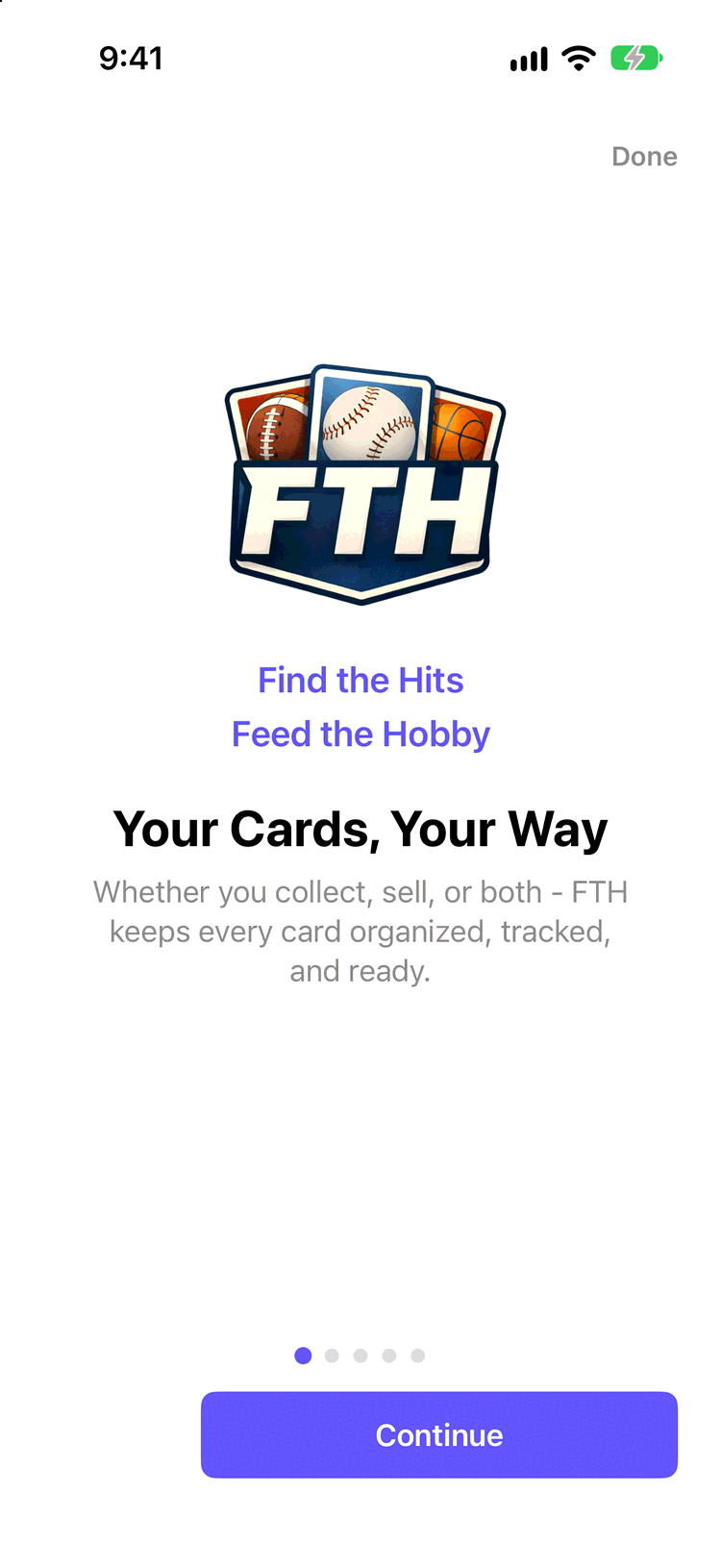
- Continue moves to the next page.
- Back moves to the page before (from page 2 on).
- Skip at the top right ends the tour.
The five pages:
- Welcome. The FTH logo, “Find the Hits” and “Feed the Hobby,” then Your Cards, Your Way: “Whether you collect, sell, or both - FTH keeps every card organized, tracked, and ready.”
- Point. Scan. Done. An animated example of Magic Scan finding a card’s player, card number, year, brand, set, and sport.
- Built for Collectors and Sellers. Tracking what you paid, what it is worth, and your profit; organizing with collections, set checklists, and smart search; Show Mode at card shows; and marking cards For Sale and selling singles or batches.
- Cloud-Enhanced Scanning. Explains the optional cloud scanning mode and has a switch, Enable Cloud-Enhanced Scanning, which is off unless you turn it on. See “Cloud-Enhanced Scanning.”
- Ready to Start? Scan Your First Card closes the tour and opens the Add a Card screen. Explore on My Own closes the tour.
You can watch the tour again any time: go to Settings, then About & Support, then tap Replay Welcome Tour. When you replay it, the top button says Done instead of Skip.
4. Getting around
The tabs
- Dashboard: totals for your collection, your most recent cards, and (with FTH Pro) charts and analytics.
- Collection: search, your cards by status, Smart Collections, Custom Collections, Set Checklists, Wishlist, and Grading Tracker.
- Discover: card shows, hobby news, new releases, and YouTube channels.
- Settings: your account, subscription, sync, data tools, appearance, privacy, and scanning settings.
On iPad, the tabs can also appear as a sidebar. With a keyboard attached, Command-1 through Command-4 switch between the four tabs.
The + button
The + at the top right of the Dashboard, the Collection tab, and every card list opens Add a Card. See “Adding cards.” Wherever you are, a new card is one tap away.
Gestures that work almost everywhere
- Pull down on the Dashboard to refresh it.
- Touch and hold a card in a list to see a preview with Edit and Delete.
- Swipe left on a card row for Delete and Edit.
- Undo: when you delete a card, a bar at the bottom says the card was deleted, with Undo. It stays for about 5 seconds.
Deleting a card always asks first: Delete this card? “This card will be removed from your collection.” Between the question and the Undo bar, a slip of the thumb does not cost you a card.
5. Adding cards
Tap + to open Add a Card. It offers four ways to add a card. Pick the one that fits the job in front of you.
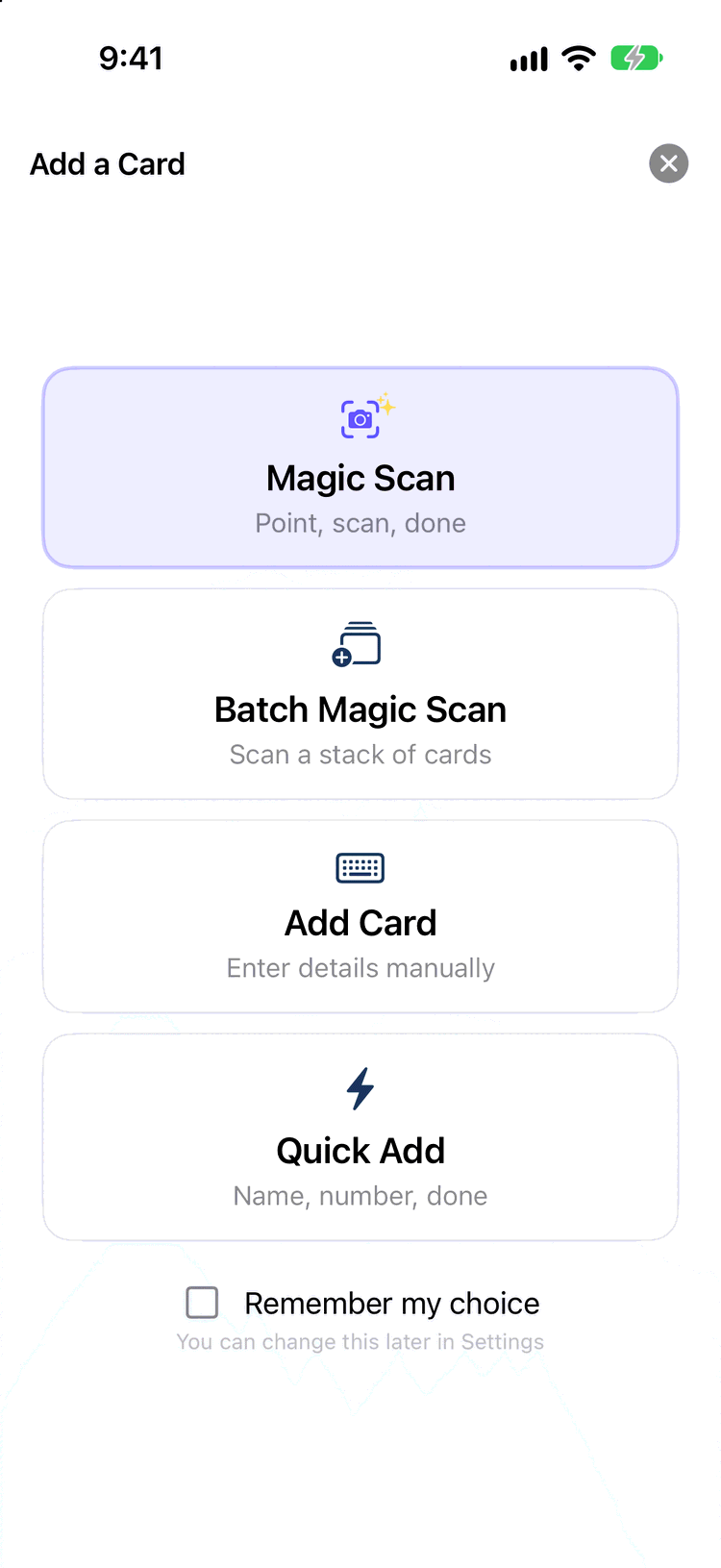
- Magic Scan (“Point, scan, done”). Best for most cards: photograph the front and back, and FTH fills in the details.
- Batch Magic Scan (“Scan a stack of cards”). Best for many cards in a row, such as a new purchase or a box break, reviewed together at the end.
- Add Card (“Enter details manually”). Best when you want full control over every field, including price, condition, and grading.
- Quick Add (“Name, number, done”). Best for typing in many cards fast with only the basics.
Two more controls on this screen:
- Remember my choice. Check this box before you tap Magic Scan, Add Card, or Quick Add, and the + button goes straight to that method from then on. “You can change this later in Settings.” To undo it, go to Settings, then Collection Data, then Preferences, and tap Reset Add Card Choice. Batch Magic Scan is not remembered.
- The X at the top right closes the screen.
What it gives you: if you always add cards the same way, Remember my choice saves you a tap on every card.
5.1 Magic Scan
Magic Scan reads the text on your card with your phone and fills in the card’s details for you, so you check a few fields instead of typing them all.
The first time you open Magic Scan, a Scanning Tips message says: “Hold your phone 10-12 inches from the card. Good lighting helps! Keep the card flat and centered.” Tap Got it.
To scan a card:
- Tap +, then Magic Scan.
- Lay the card flat in good light and hold your phone 10 to 12 inches above it.
- Line the card up inside the frame on screen (“Position card inside frame”). The banner at the top says Step 1 of 2 - Photograph front of card.
- Tap the shutter, the large white circle at the bottom center.
- Turn the card over. The banner now says Step 2 of 2 - Now photograph back of card. Tap the shutter again.
- Wait while FTH reads the card, then check the details on the review screen and tap Add to Collection.
Camera controls:
- Shutter (the large white circle at the bottom center): takes the photo.
- Flashlight (bottom left): turns the light on or off, for dark rooms and show floors.
- 1x / 2x (bottom right): switches the zoom. 2x helps with small cards.
- X (top): closes the camera.
Processing. After the back photo, FTH shows your photo with Analyzing… and a status line such as “Reading your card…” or “Analyzing card details…,” or, for a graded slab, the grading company and cert number it found. Cancel stops and returns to the camera. If your phone is warm, FTH says so and uses a faster scan to protect your phone.
The review screen. When processing finishes, you see your card photo and the details FTH found, with the note: “Check each field. Tap any value to correct it before saving.”
- Fields: Player Name, Year, Brand, Set, Number, and Sport. Tap any value to change it. While you type a player, brand, or set, names already in your collection appear as suggestions; tap one to use it, so your spelling stays the same across cards.
- Empty fields say Tap to enter.
- Values FTH is not sure about have an orange dashed underline and a question mark. Check these first.
- Details: chips for anything else FTH found, such as the variant, team, Rookie, autograph, relic, 1st Bowman, or a serial number. If a chip is wrong, tap its X to remove it.
- A photo quality note may appear at the top, such as “Photo appears blurry. Try holding your phone steadier or farther from the card.” See “Messages the app may show.”
- We couldn’t read this card appears when almost no text was found. Fill in the fields yourself or retake the photos.
- Retake Back (top left) retakes only the back photo. The X (top right) cancels the scan.
Buttons at the bottom of the review screen:
- Add to Collection: saves the card. The screen then shows Card Added! with Scan Another and Done.
- Edit Details: opens the full Add Card form with everything filled in, so you can add a price, condition, collection, and more before saving.
- Retake: starts this card over.
- Database Match (FTH Pro): searches the SportsCardsPro card database for your card and shows up to 5 matches, each with a match percentage, a price where one is available, and the variant. Tap a match to fill in the set name and variant from it. If nothing is found, it says “No matches found.”
What it gives you: most cards go from your hand to your collection in about the time it takes to flip them over. Magic Scan runs on your phone, so it is unlimited on the free plan and works with no internet, even in a convention center with no signal. Database Match helps pin down the exact parallel or variant when the card itself does not make it obvious.
5.2 Graded cards (slabs)
When you scan a graded card in its slab, Magic Scan looks for the grading company’s barcode in your photos. Make sure the label and its barcode are in the photo and free of glare.
- Graded Card Detected shows the Company, the Grade (or Authentic for cards with no numeric grade), and the Cert #. If the grading data is wrong, tap the X on this box to remove it.
- Verify Cert opens the grading company’s own cert lookup page in your browser. It works for PSA, BGS, CGC, SGC, and Arena Club.
- PSA slabs: FTH looks up the cert with PSA and fills in the card’s details from PSA’s record. When that works you see Cert Verified and “Card details verified by PSA,” plus Sub-Grades and Population (“N graded”) when PSA provides them.
- Daily PSA limit: each device can make up to 100 PSA lookups a day. After that, the card is filled in from the photo text only, and the processing screen tells you to try again tomorrow. If a lookup fails for any other reason, FTH uses the photo text instead.
- Other grading companies: cert lookups are not available yet. Their slabs are read from the photo text.
- Duplicate Cert Number: “This cert is already in your collection.” You may be scanning a slab you already added.
What it gives you: for PSA slabs, the card’s details come from PSA’s own record instead of your typing, the grade and cert number are filled in, and you can see the population. Verify Cert lets you check any slab against the grading company before you buy or sell it. The duplicate cert warning keeps the same slab from being counted twice.
5.3 Batch Magic Scan
Batch Magic Scan lets you photograph card after card without stopping to review each one.
- Tap +, then Batch Magic Scan.
- Photograph the front and back of a card, the same as Magic Scan.
- FTH processes it (“Scanning card N…”) and goes straight back to the camera for the next card. A counter shows how many cards you have scanned.
- Repeat for every card in the stack.
- Close the camera, or tap Review (N) at the top, to see the list. Each row shows the player, the card number, badges such as RC, 1st, Auto, Relic, or a serial number like 12/99, and a cloud icon if cloud scanning improved it.
- Tap any card to correct it on the Edit Card screen: Player Name, Year, Brand, Set Name, Card Number, Team, and the attributes Rookie (RC), 1st Bowman, Autograph, Relic / Memorabilia, Serial Numbered, and Variant / Parallel. Remove from Batch drops a card from the batch.
- Tap Scan More Cards to go back to the camera, or Save All to Collection to save every card (“Saving cards…”). When it finishes you see N Cards Added!. Tap Done.
Cancel at the top left leaves without saving.
Free plan limit: a batch holds up to 5 cards. When you reach it, Batch Scan Limit says: “Free users can scan up to 5 cards per session. Upgrade to FTH Pro for unlimited batch scanning.” Choose Review Cards to save what you have, or Upgrade to FTH Pro. With FTH Pro, batches have no limit.
What it gives you: you keep a rhythm going with the camera and do all the checking at the end, which is the fastest way to catalog a new purchase, a box break, or a stack you just bought at a show.
5.4 Add Card (manual entry)
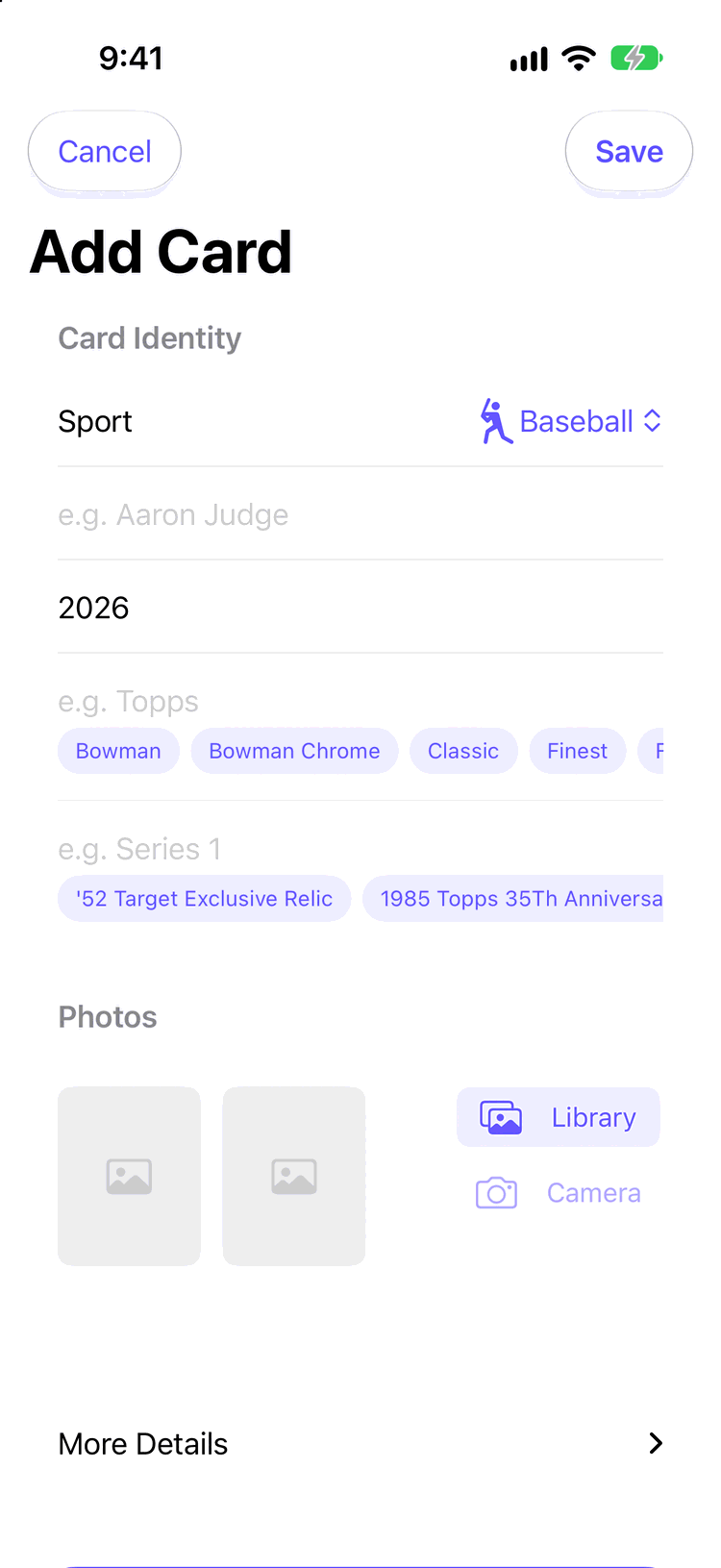
Add Card is the full form for adding or editing a card. Its title is Add Card, or Edit Card when you are editing one. Only three fields are required; everything else is there when you want it.
Card Identity (always shown):
- Sport: Baseball, Basketball, Football, Hockey, Soccer, Trading Card Game, Racing, Wrestling, Golf, MMA, Boxing, Tennis, or Other.
- Player Name (required).
- Year (required). It must be between 1900 and next year. Years you used recently appear as quick buttons.
- Brand (required), for example Topps.
- Set Name, for example Series 1.
Photos: up to two photos, front and back.
- Library picks a photo you already have. Camera takes a new one.
- The first photo is marked Primary; it is the one shown in your lists.
- Tap a photo to see it full screen.
- Delete under a photo removes it after asking “Are you sure you want to remove this photo?”
More Details (tap to expand):
- Card Details: Card Number (optional); card type chips (Base, Rookie, Insert, Parallel, Auto, Relic, Patch, Refractor, Numbered, Short Print, and Other); Variant Type (optional); Team (optional); and, for Numbered cards, Serial # and Print Run (for example 12 and 99 for a card numbered 12/99).
- Card Status: My Collection or For Sale. For Sale adds an Asking Price. Estimated Value is always here.
- Condition & Grading: Raw or Graded. A raw card gets a Raw Condition: Mint, Near Mint, Excellent, Very Good, Good, Fair, or Poor. A graded card gets a Grading Company (PSA, BGS, SGC, CGC, Arena Club, TAG, or Other), a Grade or Authentic (No Numeric Grade), and Cert Number (optional).
- Financial: Purchase Price, Purchase Source (eBay, Local Card Shop, Card Show, Online Store, Trade, Pack/Box Pull, Gift, or Other), Purchase Date, Grading Fee, and Shipping Cost. Together these make up what you have invested in the card.
- Organization: Location (optional), such as a binder or box name, so you can find the card later.
- Notes & Tags: Notes (optional), and tags you type into Add tag…. Tags are searchable.
- Collections: check the Custom Collections this card belongs to, or tap Create Collection if you have none yet.
To save a card:
- Fill in at least Player Name, Year, and Brand.
- Tap Save Card at the bottom, or Save at the top.
- On Card Saved!, tap Add Another to keep going, or Done to finish.
When you are editing, the buttons say Update Card and Update, and you see Card Updated!.
If a required field is missing, the form says so under the field, for example “Player name is required” or “Brand is required.”
FTH remembers your last entries. A new card starts with the year, sport, brand, and set name you used most recently, and Add Another keeps the sport, brand, set name, year, team, and collections. Cards from the same set go in fast.
What it gives you: every detail a collector or seller cares about lives on the card: the grade, what you paid and where, fees, where the card is stored, and your own notes. That is what makes the profit numbers, reports, and search work later.
5.5 Quick Add
Quick Add is a short form for entering many cards in a row: Sport, Player Name, Card Number (optional), Year, Brand, and Set Name.
- Tap +, then Quick Add.
- Fill in the sport, year, brand, and set once.
- Type the player and card number.
- Tap Save & Next. FTH shows “Card saved” and clears the player and card number. The sport, year, brand, and set stay filled in.
- Repeat for the next card. A line shows how many cards you added this session.
- Tap Done when you are finished.
What it gives you: the fastest way to enter a run of cards from one set, such as working through a binder page or a team lot. You can add prices and photos later.
5.6 Duplicate warning
On Add Card and Quick Add, if a card with the same player and year (and the same brand, set, and card number, when you have entered them) is already in your collection, a warning says “Possible duplicate: N similar card(s) found.”
You can still save. It is only a heads-up, so you notice before you count the same card twice, and so you know you have a spare to sell or trade.
6. Cloud-Enhanced Scanning
Magic Scan always reads your card on your phone first. Cloud-Enhanced Scanning is an optional extra step for cards that are hard to read: stylized fonts, vintage cards, and ornate parallels.
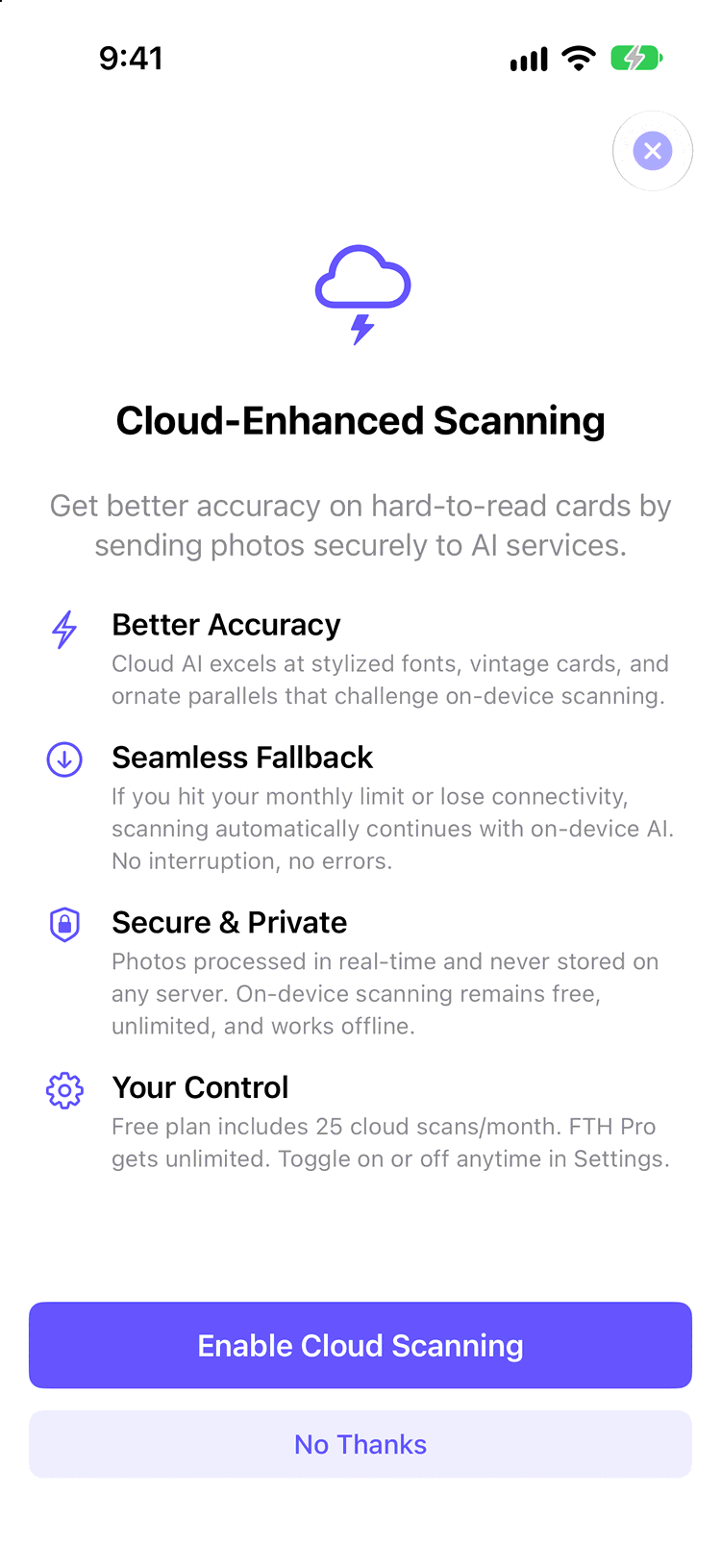
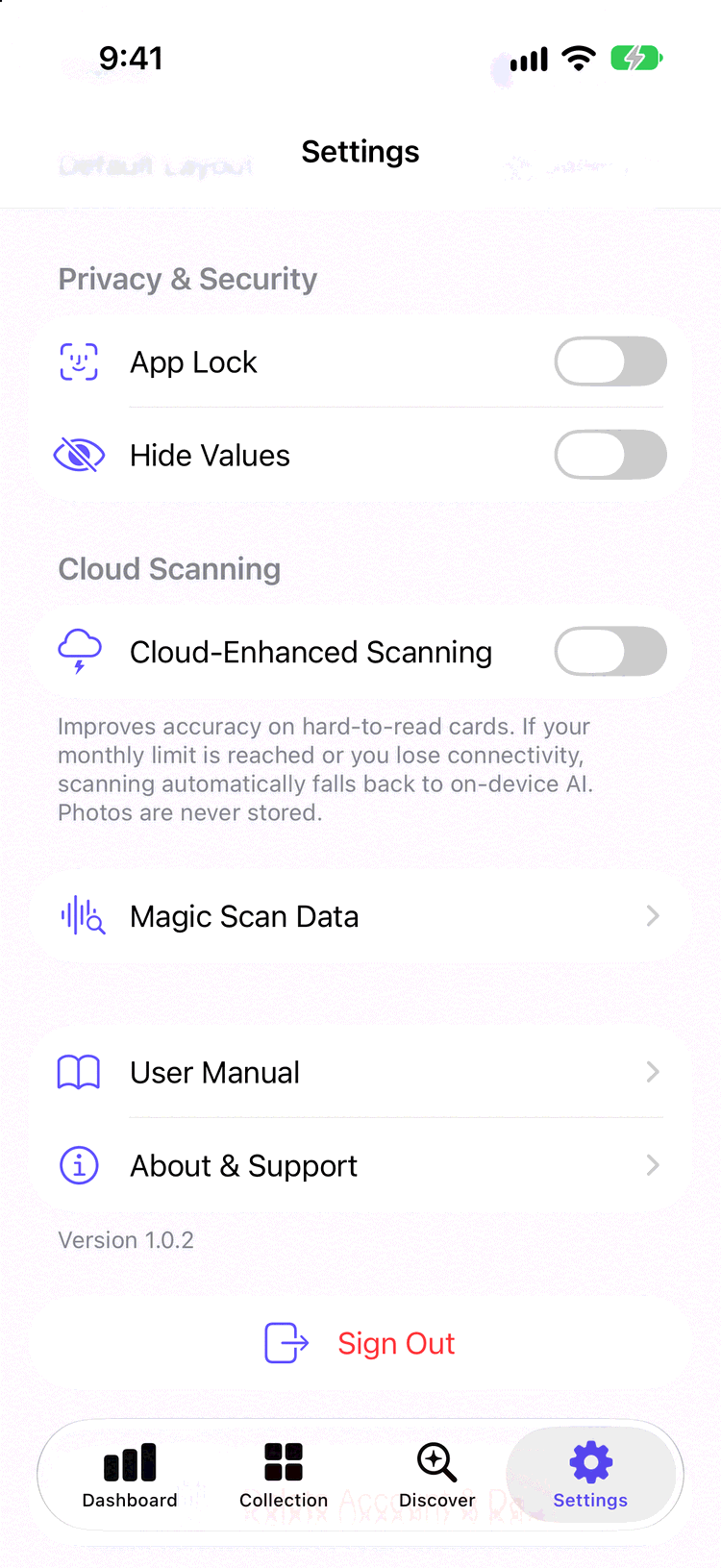
It is off unless you turn it on.
To turn it on or off:
- Go to Settings.
- Under Cloud Scanning, turn Cloud-Enhanced Scanning on or off.
You can also turn it on during the welcome tour.
How it works:
- FTH only uses the cloud when its on-phone reading looks unsure. If the phone’s reading is good, nothing is sent.
- When it is used, your card photos are sent securely to an AI service, and the result is combined with what your phone read. FTH says the photos are processed in real time and never stored.
- While it works, the review screen says Enhancing with Cloud AI…, then Scanned with Cloud AI when it is done.
- If you have no internet connection, the review screen says “Cloud enhancement unavailable” and the scan continues with your phone’s reading.
Limits:
- Free plan: 25 cloud scans a month. The count starts over on the 1st of each month. Settings, Cloud Scanning shows Cloud Scans Remaining (for example “18 of 25”).
- When you have 5 or fewer left, the review screen shows how many are left this month, with Get unlimited with Pro.
- When they are used up, it says Cloud scans used up. Scanning locally. with Get unlimited cloud scans with Pro. Scanning keeps working on your phone.
- FTH Pro: unlimited cloud scans.
Scanning on your phone is free, unlimited, and works offline whether or not cloud scanning is on.
What it gives you: better results on the cards that phones struggle with, without giving up privacy on the cards they read well. You choose whether it is on, and a scan never fails because you are offline or out of cloud scans.
7. Dashboard and Advanced Analytics
The Dashboard is the first tab. It answers the questions collectors ask most: how many cards do I have, what are they worth, and am I up or down.
Before your first card
The Dashboard says Welcome to FTH, “Start building your collection by adding your first card,” and shows Add Your First Card, with three tips: use the Collection tab to organize cards, track purchase price and estimated value, and search and filter your collection.
The Dashboard on the free plan
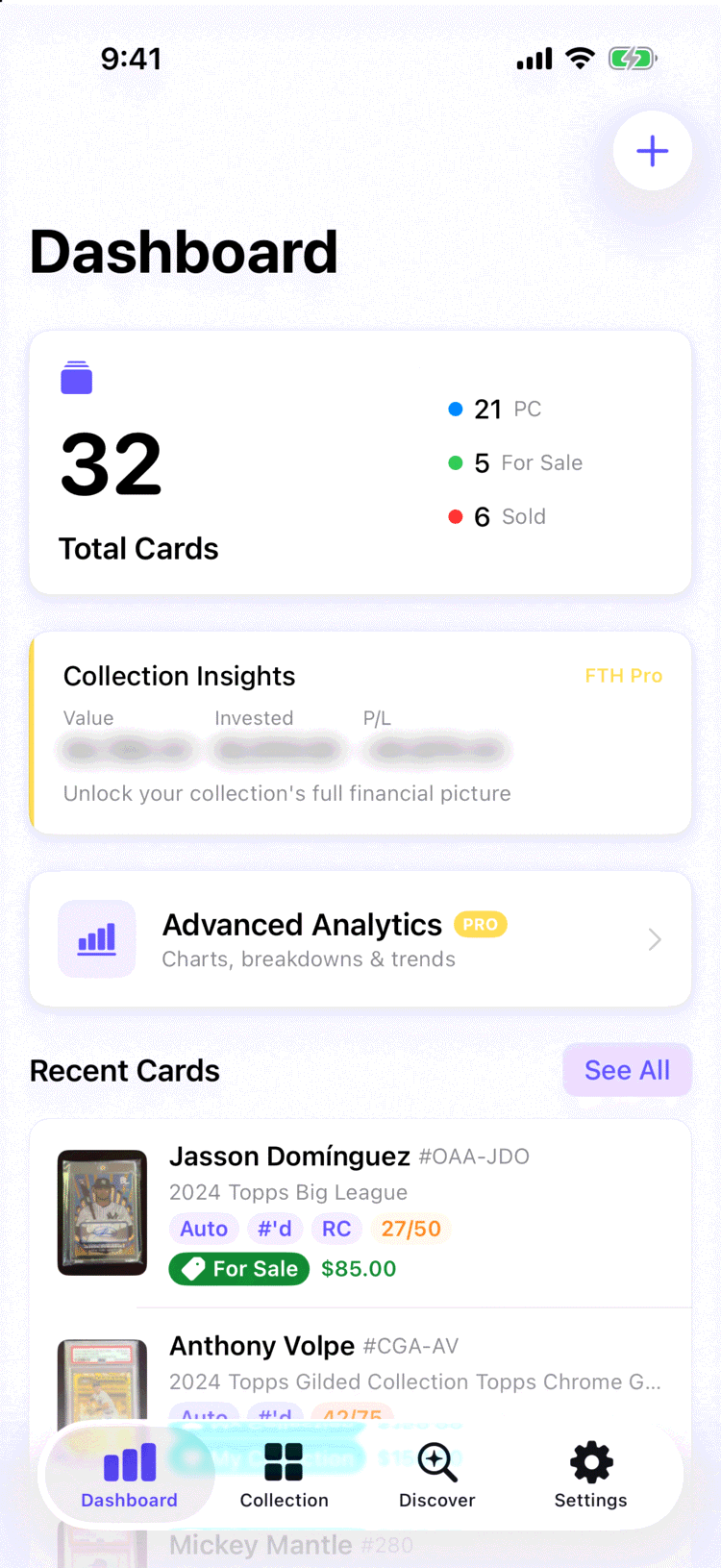
- Total Cards, with how many are PC (personal collection), For Sale, and Sold.
- Collection Insights, with an FTH Pro label. Your Value, Invested, and P/L are shown blurred. Tap the card to see FTH Pro: “Unlock your collection’s full financial picture.”
The Dashboard with FTH Pro
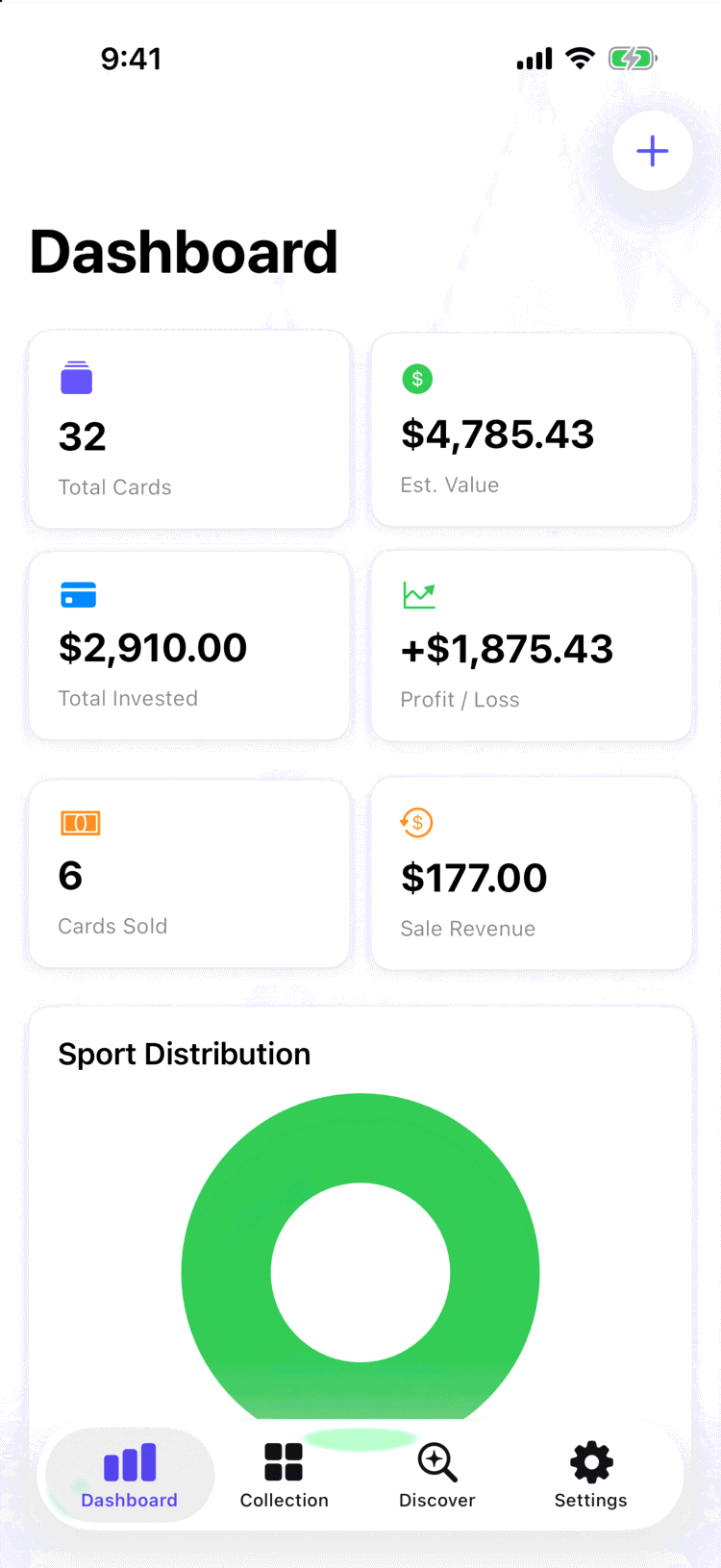
- Total Cards, Est. Value, Total Invested, and Profit / Loss (green when you are up, red when you are down).
- Cards Sold and Sale Revenue, once you have sold a card.
- Sport Distribution: a ring chart of how many cards you have in each sport.
- Value by Status: a bar chart of the value of your personal collection, your for-sale cards, and your sold cards.
On every plan
- Advanced Analytics (“Charts, breakdowns & trends”) opens the analytics screen. On the free plan it carries a PRO label.
- Recent Cards: your 10 most recently added cards. See All opens every card. Touch and hold a card for Edit and Delete.
Advanced Analytics (FTH Pro)
On the free plan, this screen lists what it includes and has Upgrade to FTH Pro.
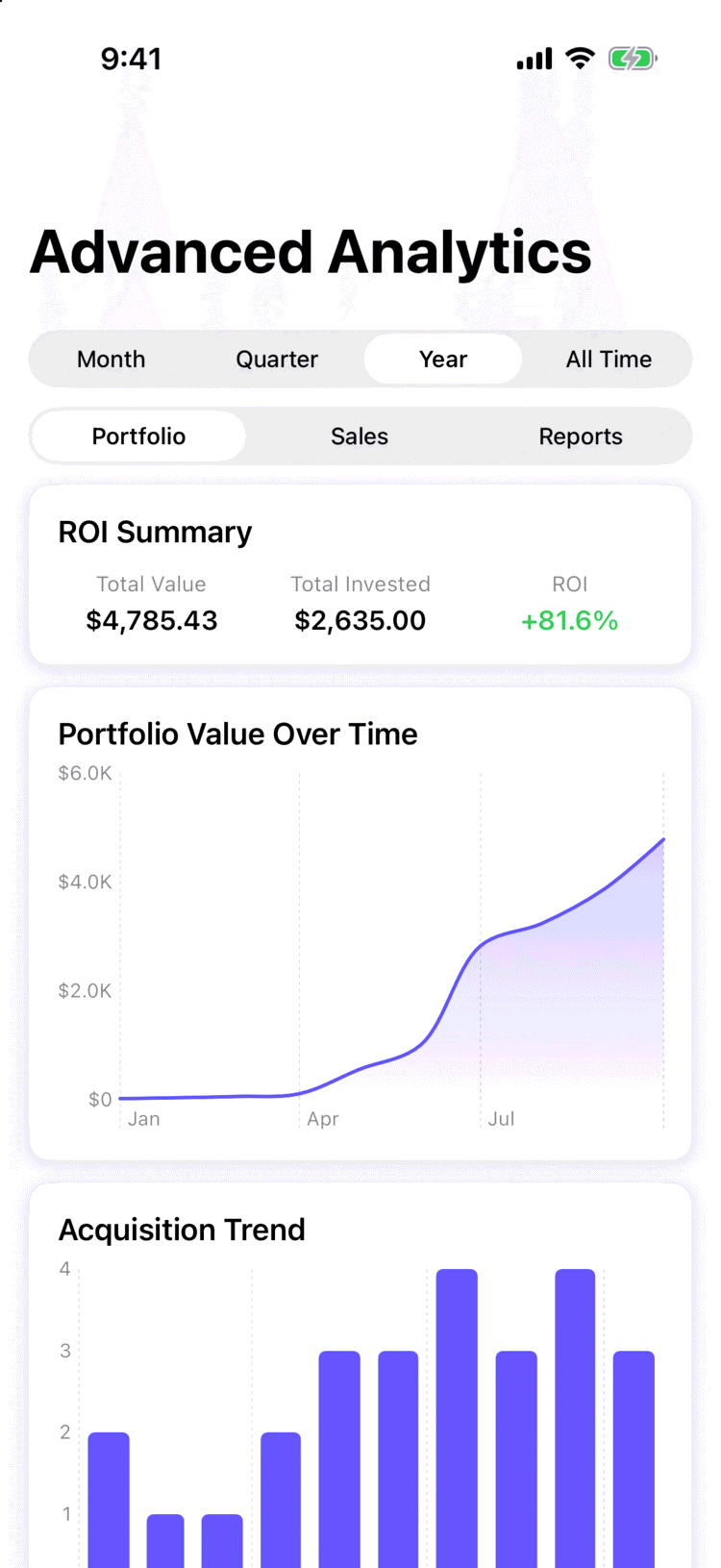
With FTH Pro, pick a time range at the top (Month, Quarter, Year, or All Time) and one of three tabs.
Portfolio:
- ROI Summary: Total Value, Total Invested, and ROI (return on investment, as a percent).
- Portfolio Value Over Time: how your collection’s value changes.
- Acquisition Trend: how many cards you added each month.
- Top Performers: your 5 cards with the best return. A card needs a purchase price to appear here; until then it says “No cards with purchase price data yet.”
Sales:
- Sales Summary: Total Revenue, Total Profit, Avg Margin, and Cards Sold.
- Sales Over Time.
- Top Customers: who you sold to most, with card count and average per card. This uses the buyer names you enter when you record a sale.
- Top Venues: where you sold, with card count and margin. This uses the place you enter when you record a sale.
- Revenue by Sport and Revenue by Brand.
- Flip Speed: the average number of days from getting a card to selling it.
If you have not sold anything yet, it says No Sales Yet: “Mark cards as sold to see sales analytics here.”
Reports: a sales report for your records or your accountant.
- Pick a Date Range: Last 7 Days, Last 30 Days, Last 90 Days, This Year, or Custom (pick From and To).
- Under Options, choose Include Photos, Include Cost Basis, and Include Customer Names (all on to start). With photos off, choose a PDF Layout: Detailed (“Full card details, 5 per page”) or Compact (“Landscape table, many rows per page”).
- Check the Report Preview: how many sales and the total, or “No sales found in this date range.”
- Tap Generate PDF Report for a PDF you can save or share, or Export CSV for Accounting for a spreadsheet file.
What it gives you: the Dashboard shows where your collection stands at a glance. Advanced Analytics shows which cards earned the most, which shows and buyers are worth your time, and how fast your inventory turns over. Reports put your sales on paper at tax time without retyping anything.
8. The Collection tab
The Collection tab is the home for everything you own and everything you are tracking.
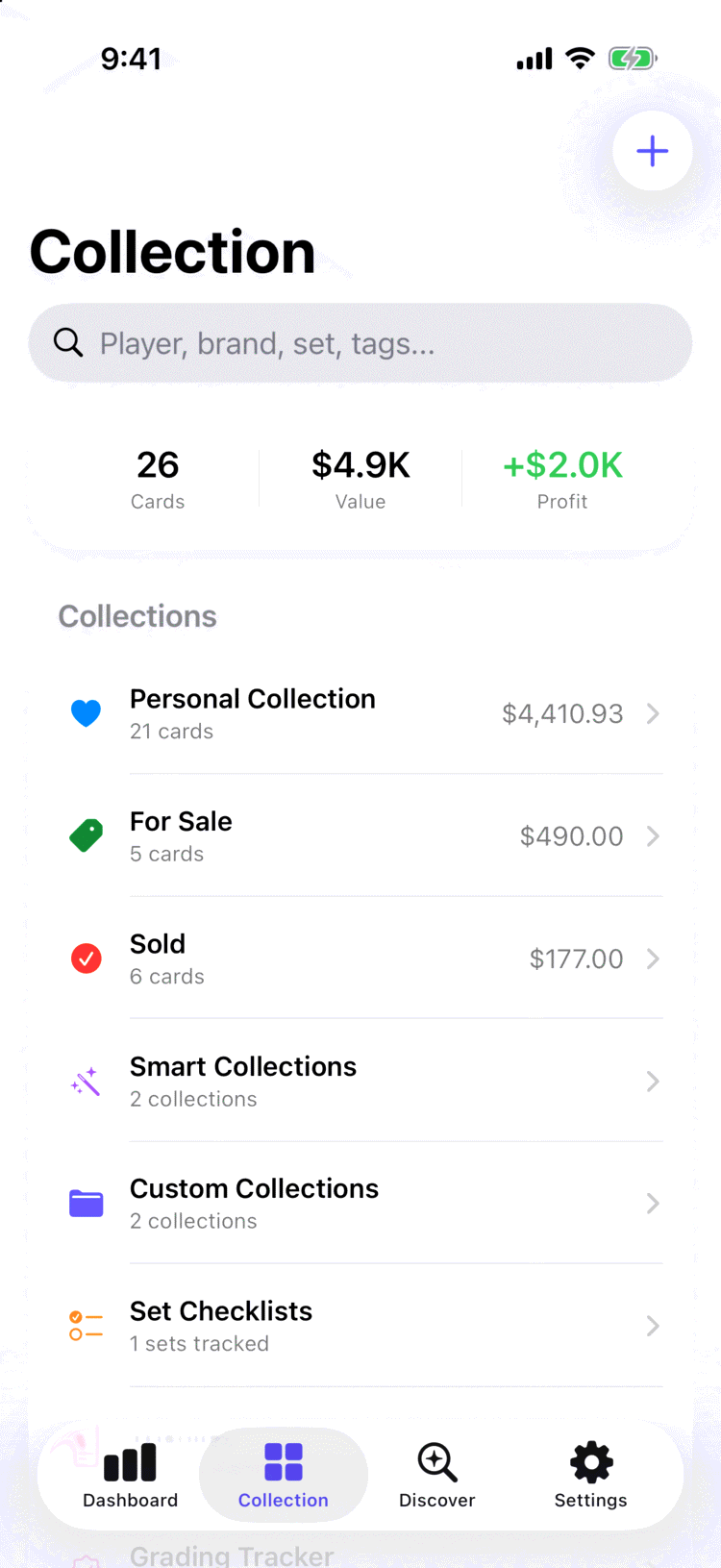
Search
Pull down on the Collection tab to reveal the search box: “Player, brand, set, tags…”.
FTH searches the player, brand, set, card number, variant, team, sport, notes, location, condition, grading company, autograph and relic types, tags, and card type. Results show “N Results.”
A few search words act as shortcuts:
- rc, rookie, or rookies finds your rookie cards.
- auto, autograph, or autographed finds autographs.
- relic or relics finds relic cards.
- numbered, /99, /25, or /10 finds serial-numbered cards.
- 1st or 1st bowman finds 1st Bowman cards.
- A four-digit year, such as 2023, finds cards from that year.
Save, next to the results, turns the search into a Smart Collection, so you can come back to it with one tap.
What it gives you: find any card in seconds, by player, by where it is stored, or by a tag you gave it.
Summary
At the top of the tab: Cards (how many), Value, and Profit.
Your cards by status
Every card is in one of three statuses, each shown with a card count and total value:
- Personal Collection: cards you are keeping.
- For Sale: cards you have marked for sale.
- Sold: cards you have sold.
You can drag these three rows into the order you like.
Everything else
Below the status rows:
- Smart Collections: groups that fill themselves from rules you set. See “Smart Collections.”
- Custom Collections: groups you build by hand. See “Custom Collections.”
- Set Checklists: progress on sets you are building. See “Set Checklists.”
- Wishlist: cards you are hunting. See “Wishlist.”
- Grading Tracker: cards you have sent for grading. See “Grading Tracker.”
Before your first card, this tab says Welcome to FTH with Add Your First Card.
9. Card lists
Opening a status, a Custom Collection, or See All shows a card list.
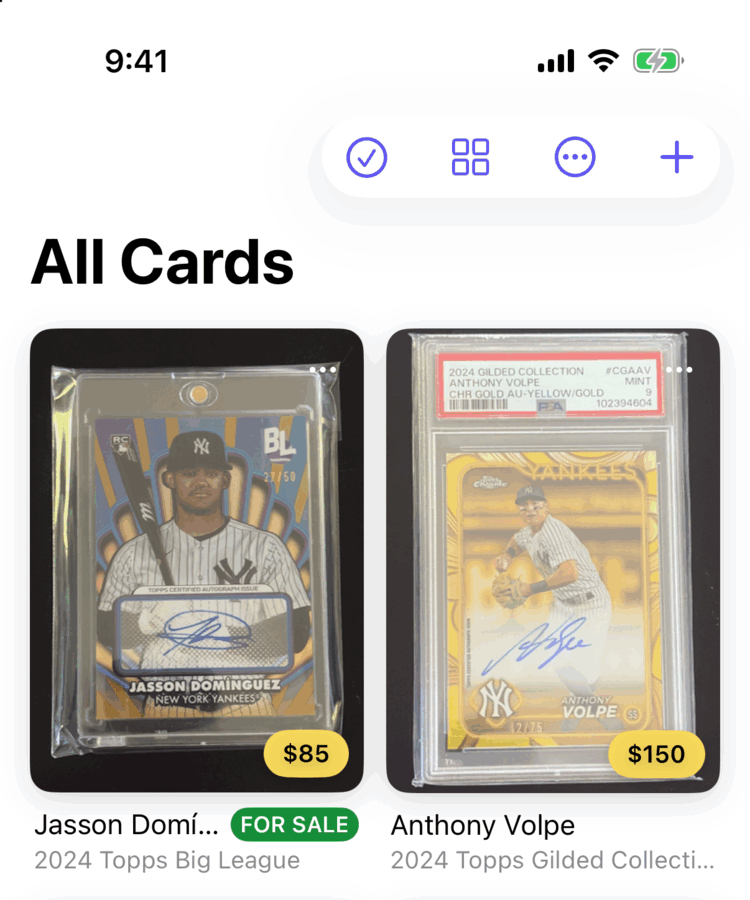
Layouts
The layout button at the top switches between:
- Gallery: two columns of large photos, best for showing off cards.
- Grid: three columns, to see more cards at once.
- List: compact rows with details, best for checking prices and numbers.
Choose the layout new lists start with in Settings, Appearance, Default Layout. Cards for sale and sold cards carry FOR SALE or SOLD badges.
The options menu
Tap the circle with three dots at the top of a list:
- Show Mode: opens these cards in Show Mode (not on the Sold list). See “Show Mode.”
- Sort: Player Name, Year, Purchase Price, Estimated Value, or Date Added. Tap the same choice again to flip between ascending and descending.
- Show Filters or Hide Filters: filter by Status, Sport, Condition, and Grading company. Clear Filters removes them. When a filter is on, the menu icon changes to a filled filter icon, so you can tell the list is filtered.
- Save as Smart Collection: after you have searched or filtered, saves it as a Smart Collection.
- Share as PDF (FTH Pro): a PDF of the cards in the list.
The list also has its own search box (“Search cards…”).
Selecting several cards
- Tap Select.
- Tap cards to check them, or use Select All or Deselect All. A bar shows “N selected.”
- Pick an action from the bar:
- Add to: adds the cards to a Custom Collection. In the same menu, Move to Status moves them to Personal Collection, For Sale, or Sold.
- Sold: records a sale for all of them at once. See “Selling several cards together.”
- Prices: refreshes their market prices. See “Bulk Price Update.”
- Share: shares them as a PDF (FTH Pro).
- Delete: deletes them after asking Delete N cards?. You can tap Undo for a few seconds afterward.
Tap Done to stop selecting.
An empty list says No Cards Yet: “Tap + to add your first card to this collection,” or, when filters hide everything, “No cards match these filters. Clear filters to see all cards.”
What it gives you: work on a whole stack at once. Move a box of cards to For Sale before a show, price-check a binder, or send a buyer a PDF of exactly the cards they asked about.
10. Card details
Tap any card to open its page.
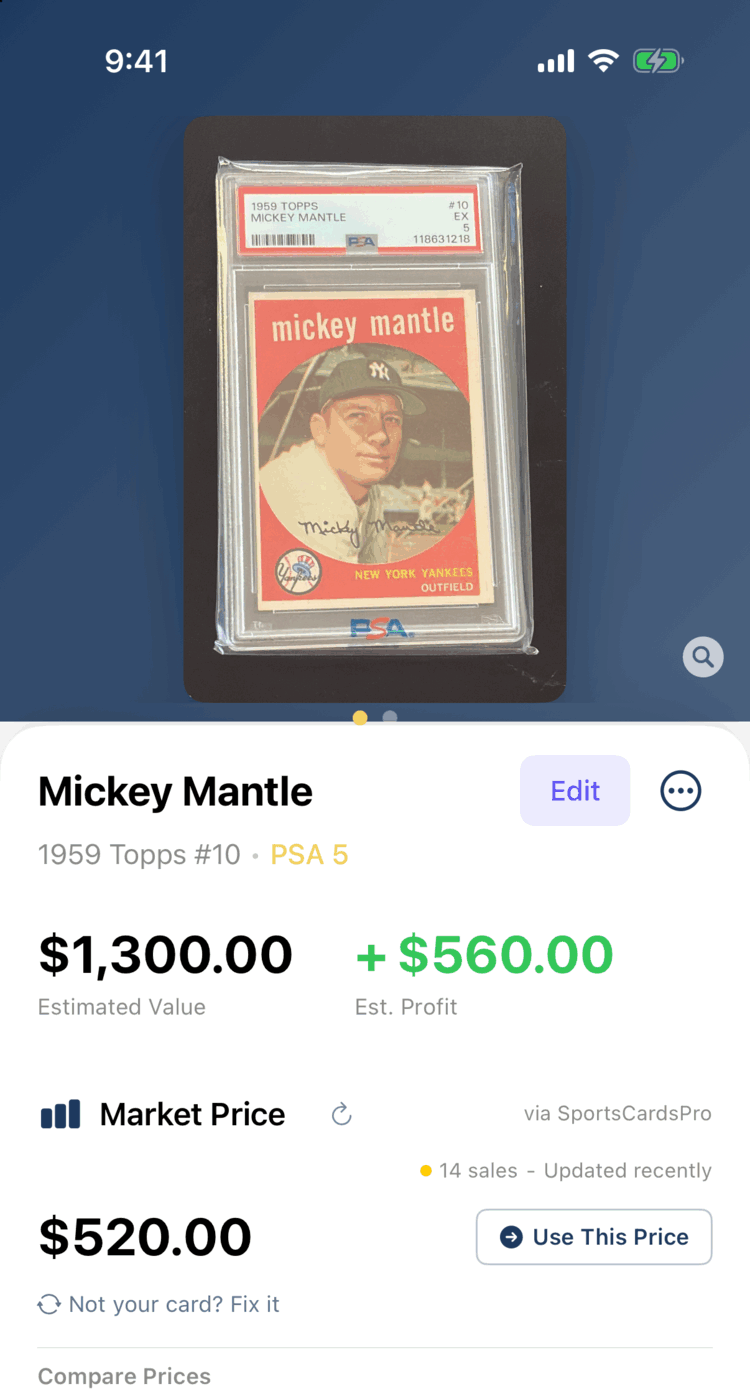
Photos
Swipe between the front and back photos. Tap a photo to see it full screen, and tap Close to return. If the card has no photo, Tap to Add Photo opens the edit form.
Header
The player’s name, then the year, brand, card number, and set. FOR SALE or SOLD badges show the card’s status.
Price and profit
- The main price is labeled Estimated Value (Personal Collection), Asking Price (For Sale), or Sold Price (Sold).
- For personal collection cards, a line says when the value was last updated, with “(from SportsCardsPro)” when it came from a price lookup.
- Est. Profit (or Actual Profit for sold cards) compares that price with what you invested.
Sections
- Market Price: price lookups and comparison links. See “Market prices.”
- Details: the card’s attributes, condition, grade, and other fields.
- Investment: Purchase Price, Grading Fee, Shipping, and Total Invested, plus Sold For once it is sold.
- Pricing: Estimated Value, and for sold cards Sold Price, Sold Date, Sold Where, Sold To, and Batch Sale if it was sold as part of a batch.
- Collections, Notes, and Tags, when the card has them.
Buttons
Edit opens the card in the Add Card form.
The … menu has:
- Share Card Image: makes a picture of the card to post or send. Choose a Theme (Light, Dark, or Sport), a Format (4:5 or 1:1), whether to Show Price, and, for cards for sale, a “For Sale” Badge. The picture includes fthcards.com.
- Share Text Only: shares the card’s details as text, with a link to FTH on the App Store.
- Share as PDF (FTH Pro): a one-card PDF.
- Mark as For Sale: asks for an Asking Price, then moves the card to For Sale.
- Remove from Sale: moves a for-sale card back to your personal collection.
- Mark as Sold: opens Record Sale. See “Selling cards.”
- Unmark as Sold: moves the card back to your Personal Collection and clears the sale price and date.
- Submit for Grading: starts a grading submission with this card (for raw cards that are not already being graded).
- Delete Card: deletes the card after asking.
What it gives you: everything about one card on one page: what it is, what it cost, what it is worth, and what you would make if you sold it today. Share Card Image gives you a clean picture for social posts or a buyer’s DMs.
11. Market prices
FTH looks up market prices from SportsCardsPro and gives you quick links to compare sold prices on 130Point and eBay.
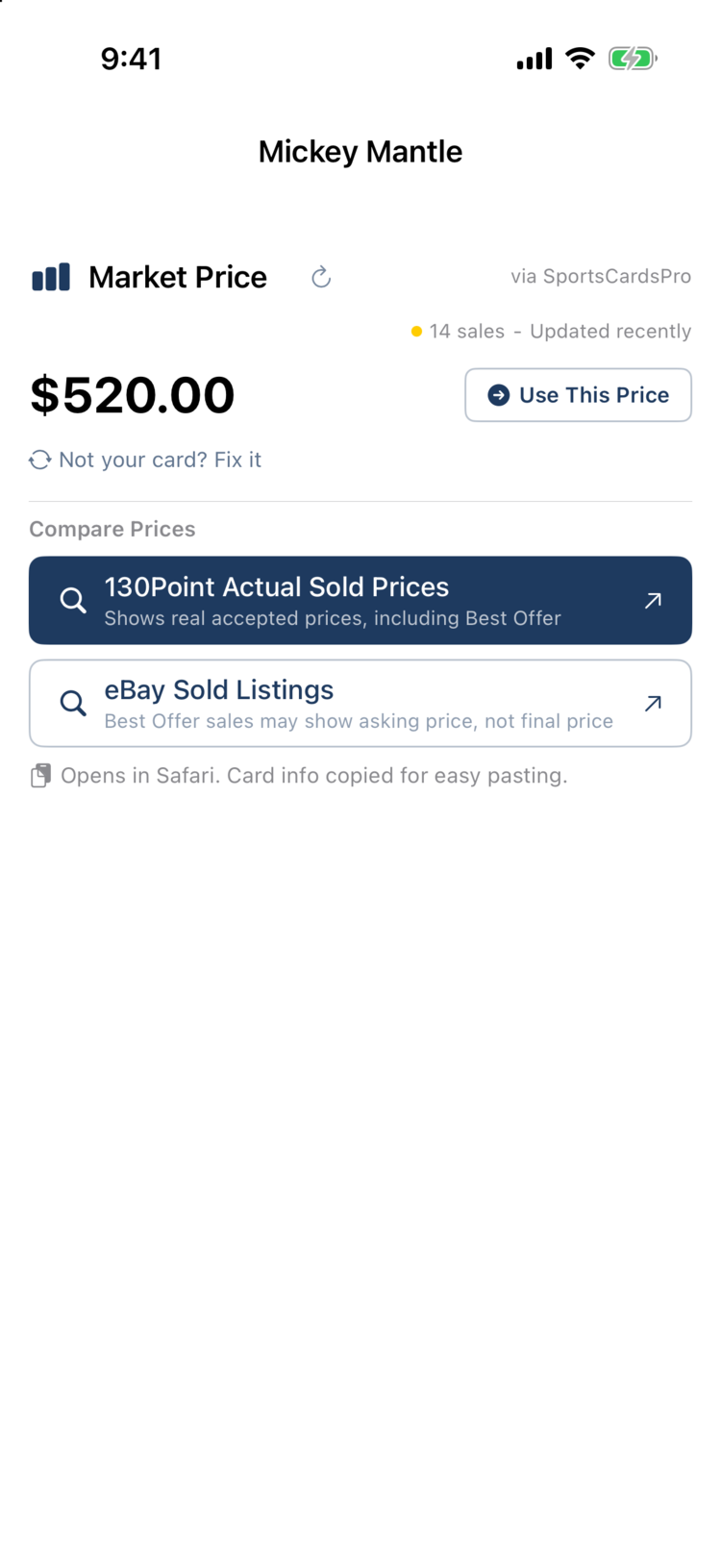
11.1 Looking up a price
- Open a card’s page. The Market Price box says “See what this card is selling for.”
- Tap Look Up. FTH shows Searching… or Loading prices… while it works.
- If FTH says Multiple versions found., the card was printed in more than one version. Tap Pick Your Version (N found), then choose yours under Which version?. If you do not know, “I’m not sure - use the base version” picks the base card.
- Read the result: the price “via SportsCardsPro,” with the number of sales it is based on.
- Tap Use This Price to set it as the card’s value. The button changes to Updated!.
More controls in the box:
- Not your card? Fix it lets you pick a different match.
- The refresh arrow looks the price up again.
- No price data available means SportsCardsPro had no price for this card.
What it gives you: current values without leaving the app, so your collection’s total value and your profit numbers stay up to date. Adding the variant and card number to a card first gives better matches.
11.2 Lookup limits
- Free plan: 25 lookups a month, starting over at the start of each month. When they are used up, the box says “All of your free lookups have been used this month” with Upgrade to Pro for unlimited lookups.
- FTH Pro: unlimited lookups.
- FTH keeps each price it finds and shows it again without a new lookup: for 7 days on the free plan, and for 24 hours with FTH Pro, so Pro prices are refreshed more often.
11.3 Compare Prices
Under Compare Prices:
- 130Point Actual Sold Prices: “Shows real accepted prices, including Best Offer.” FTH copies your card’s details (year, brand, set, player, number, and variant) to the clipboard and opens 130Point in Safari. Paste into its search bar. The first time, a message explains this (Card Info Copied).
- eBay Sold Listings: “Best Offer sales may show asking price, not final price.” FTH opens eBay’s sold listings with your card already searched. The first time, a message explains this (eBay Search Prefilled).
What it gives you: a second and third opinion in one tap, without typing the card’s details into each site. 130Point shows what Best Offer sales actually closed at, which eBay’s own listings may not.
11.4 Bulk Price Update
- In a card list, tap Select, check the cards, and tap Prices.
- FTH sorts the cards into Ready to Update (N) and Not Yet Linked (N). Only cards that already had a price lookup can be refreshed in bulk; the others say “Look up price individually first.”
- Check the estimated time, then tap Update N Cards (“Checking card N of M…”). Cancel stops.
- Update Complete lists what was Updated, what Needs Manual Review, and what was Skipped.
What it gives you: refresh the value of a whole box or binder before a show or a sale, instead of one card at a time.
11.5 Market price settings
Go to Settings, Collection Data, Market Prices:
- Usage: Lookups Used (for example “7 of 25”) and Remaining.
- Show Prices in Show Mode: when on, Show Mode adds a “Recent:” sales price under each card’s price, for cards that have one.
- Clear Cached Prices: removes saved prices. “New lookups will count against your monthly limit.”
12. Selling cards
FTH records every sale so your profit, revenue, and reports are right without a separate spreadsheet.
12.1 Marking a card for sale
- Open the card’s page.
- Tap …, then Mark as For Sale.
- Enter an Asking Price and tap Confirm.
Or set Card Status to For Sale in the edit form. For-sale cards appear in For Sale and in Show Mode.
12.2 Recording a sale
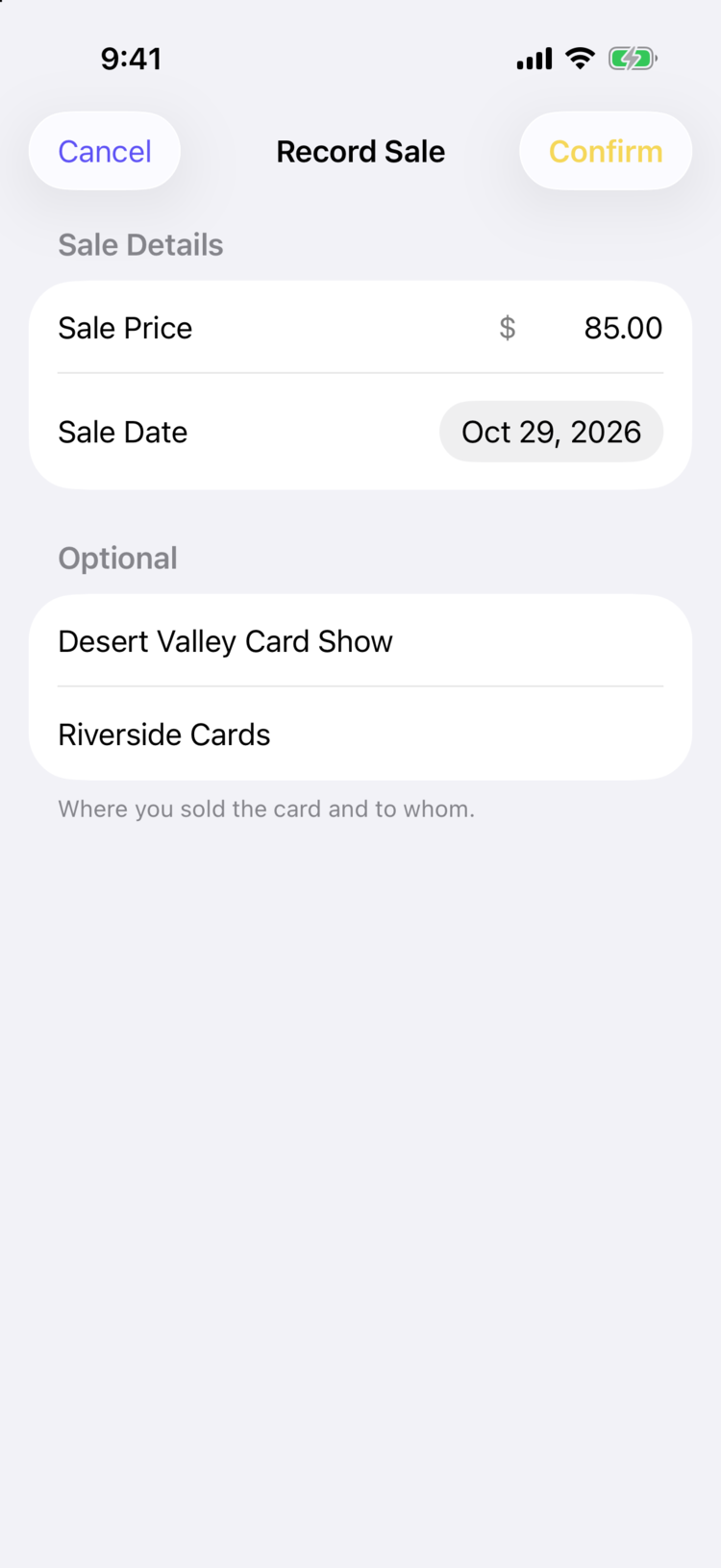
- Open the card’s page, tap …, then Mark as Sold. Record Sale opens.
- Enter the Sale Price and Sale Date.
- Optionally, under Sale Details (“Where you sold the card and to whom”), enter where you sold it (for example eBay or a card show) and the Buyer name.
- Tap Confirm to save, or Cancel to leave the card as it was.
The place and buyer feed Top Venues and Top Customers in Advanced Analytics.
12.3 Selling several cards together (batch sale)
When a buyer takes several cards for one price, record it as one batch sale.
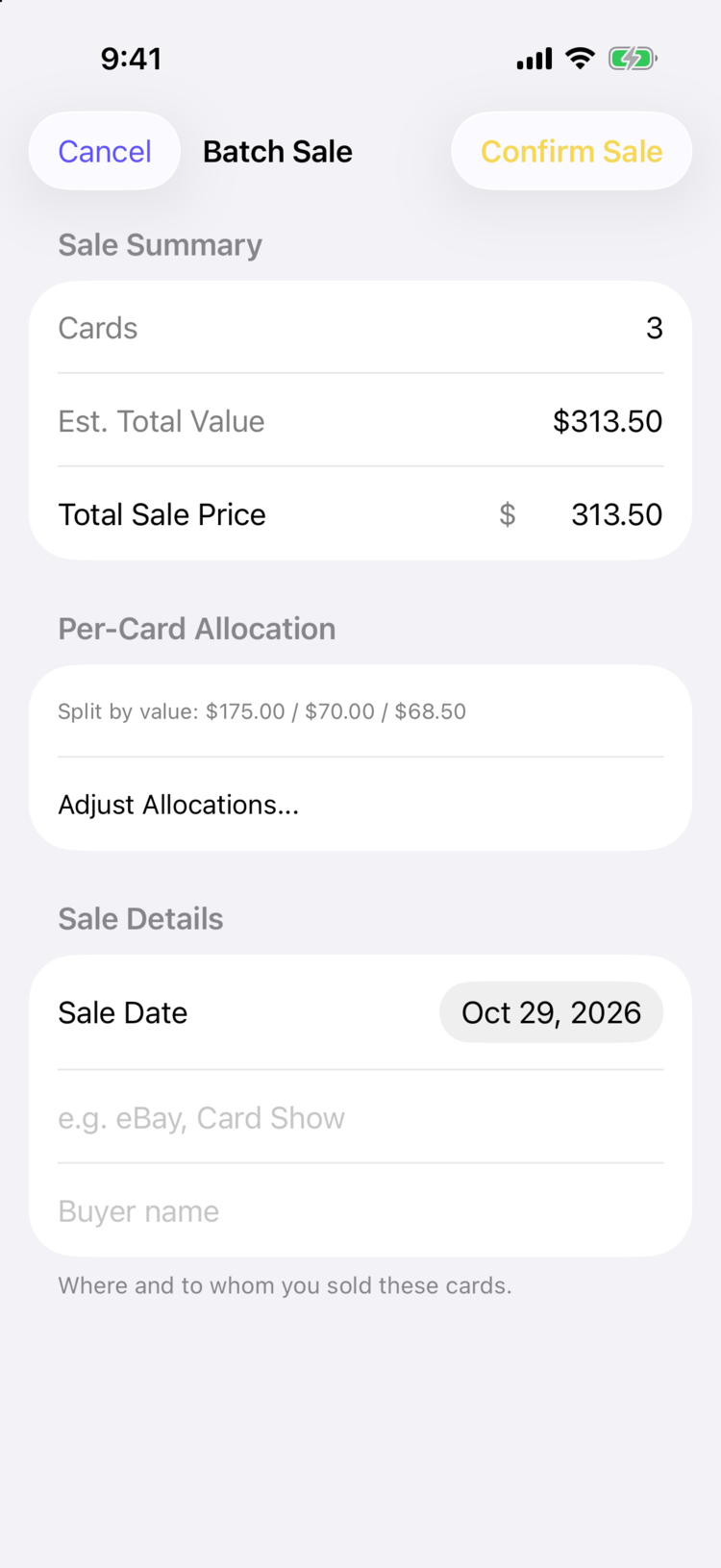
- In a card list, tap Select, check the cards, and tap Sold. (Or use Sell Batch in Show Mode.)
- On Batch Sale, check the Sale Summary: how many Cards, their Est. Total Value, and enter the Total Sale Price you got.
- Choose an Allocation Method, which decides how the total is split across the cards for each card’s profit:
- Even Split: the same amount for each card. Free.
- By Value: in proportion to each card’s value. FTH Pro.
- Manual: you type each card’s amount, and Remaining shows what is left to assign. FTH Pro.
- Check the Per-Card Breakdown, and fill in the Sale Date and Sale Details (where, and buyer name).
- Tap Confirm Sale. A bar says “N cards sold for $X” with Undo.
On the free plan the screen says “Upgrade to Pro for By Value and Manual allocation modes.”
What it gives you: lot sales stay accurate. With By Value, a star card in a lot gets its fair share of the price instead of the same amount as a base card, so each card’s profit is right.
12.4 Undoing a sale
Open the card, tap …, then Unmark as Sold.
If the card was part of a batch, FTH asks Part of a Batch Sale: “This card was sold as part of a N-card batch for $X. What would you like to do?” Choose:
- Remove This Card: only this card goes back.
- Undo Entire Batch: every card in the batch goes back.
- Cancel: nothing changes.
13. Show Mode
Show Mode is for suitcase sellers at card shows. It turns your phone or iPad into a full-screen display case that a buyer can flip through, so your case stays closed and your table stays clear.
Opening Show Mode
- Open the For Sale list (or any card list).
- Tap the circle with three dots, then Show Mode.
What it shows depends on where you open it:
- From For Sale: your for-sale cards.
- From a Custom Collection: that collection’s unsold cards.
- From Personal Collection: your personal collection cards.
- From a Smart Collection: tap Enter Show Mode.
Sold cards are never shown.
The screen
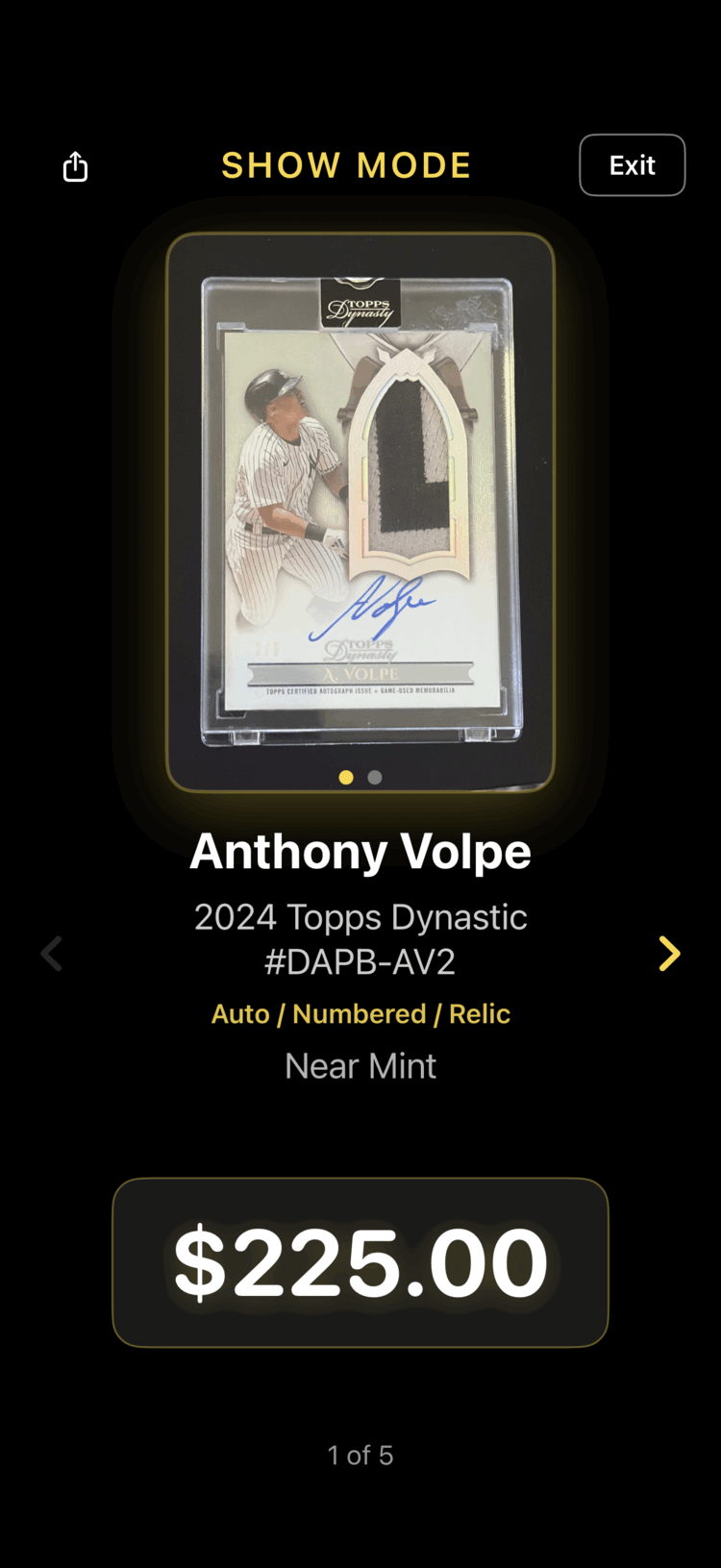
- Top bar: SHOW MODE, the collection name, a share button, and Exit. The phone’s status bar is hidden.
- The card: its photo on a black background. Tap to flip between front and back (a hint shows the first time). Pinch to zoom in on the photo.
- Moving between cards: swipe left or right, or use the arrow buttons. The bottom shows where you are, for example “3 of 18.”
- Card information: the player, year, brand, set, and card number, the card types (such as Rookie or Auto), and the grade.
- Price: the card’s asking price, or its estimated value if it has no asking price. If Show Prices in Show Mode is on in the market price settings, a “Recent:” price appears under it.
- iPad in landscape: the screen splits, with the card photo on the left and the details on the right.
Selling from Show Mode (FTH Pro)
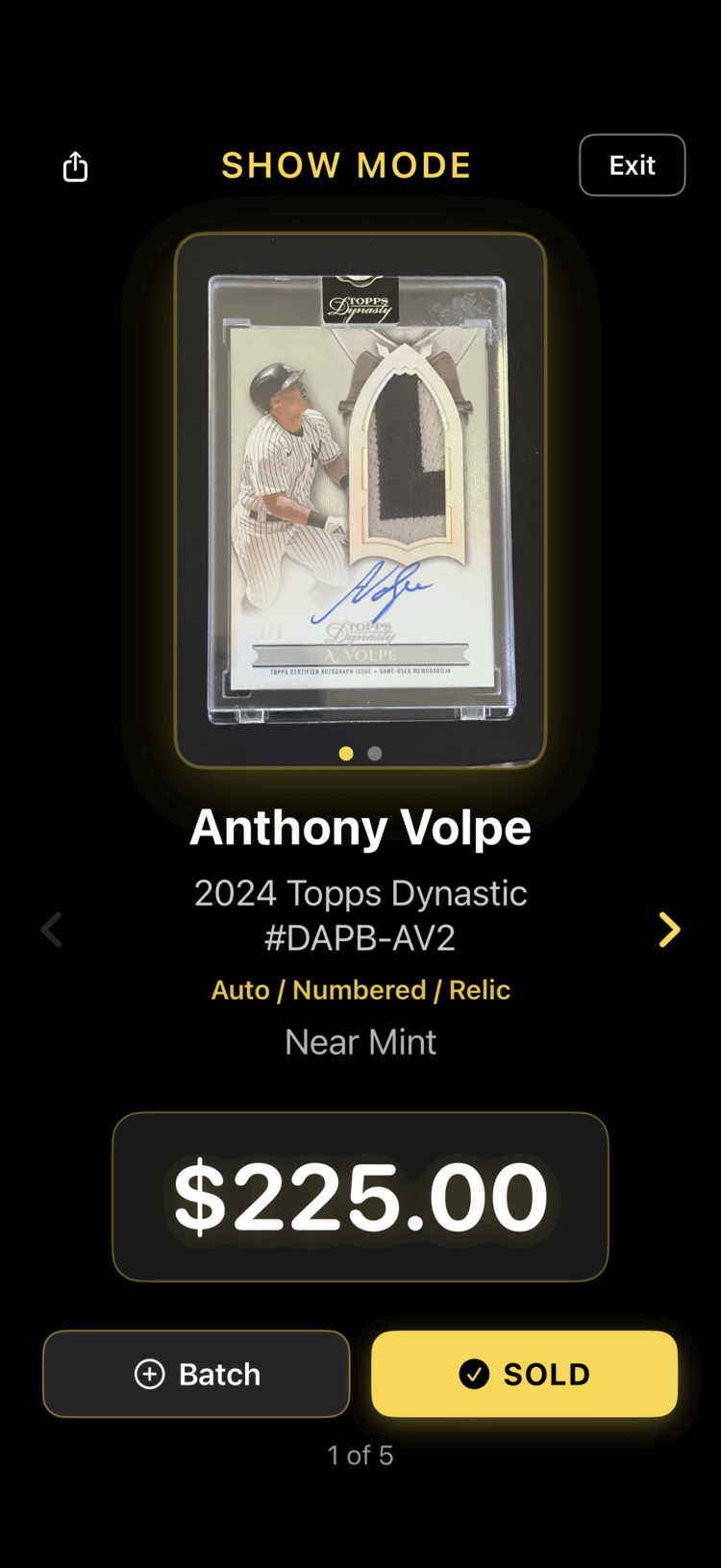
- SOLD: records a sale for the card on screen, using the Record Sale form. The last place you sold is filled in for you.
- Batch: adds the card to a batch, and the button changes to In Batch. When a batch has cards, a bar shows “N in batch,” an X to clear it, and Sell Batch, which opens the Batch Sale form.
- After a sale, a bar at the bottom says what sold, with Undo.
Sharing (FTH Pro)
The share button at the top makes a PDF of the cards in this Show Mode, titled with the collection name (or “For Sale”), so you can send a buyer a clean list of your cards and prices. On the free plan it opens FTH Pro.
On the free plan
Show Mode shows your first 25 cards. When there are more, the bottom says “Preview: N more with Pro,” and going past card 25 shows FTH Pro Feature: “Show Mode preview is limited to 25 cards. Upgrade to FTH Pro for unlimited access.” Choose See FTH Pro or Not Now. The SOLD and Batch buttons appear only with FTH Pro; on the free plan, mark a card sold from its card page after the buyer leaves.
When there is nothing to show
Show Mode says No Cards For Sale (“Mark cards as “For Sale” to display them here”) or No Cards in Collection (“Add cards to this collection to display them here”). Tap Exit Show Mode.
Exit leaves Show Mode at any time.
What it gives you: hand a buyer your phone and let them swipe through your inventory at their own pace while you talk to the next person. Large prices on a black background are easy to read under show lights. With FTH Pro you record the sale on the spot, before the next buyer steps up, and the sale is already in your records when you get home. Show Mode uses the cards already on your device, so it does not depend on the convention center’s Wi-Fi.
14. Smart Collections
A Smart Collection is a saved search. It fills itself with every card that matches your rules and updates as your collection grows. In the app: “Create collections that automatically include cards matching your criteria. They update as your collection grows.”
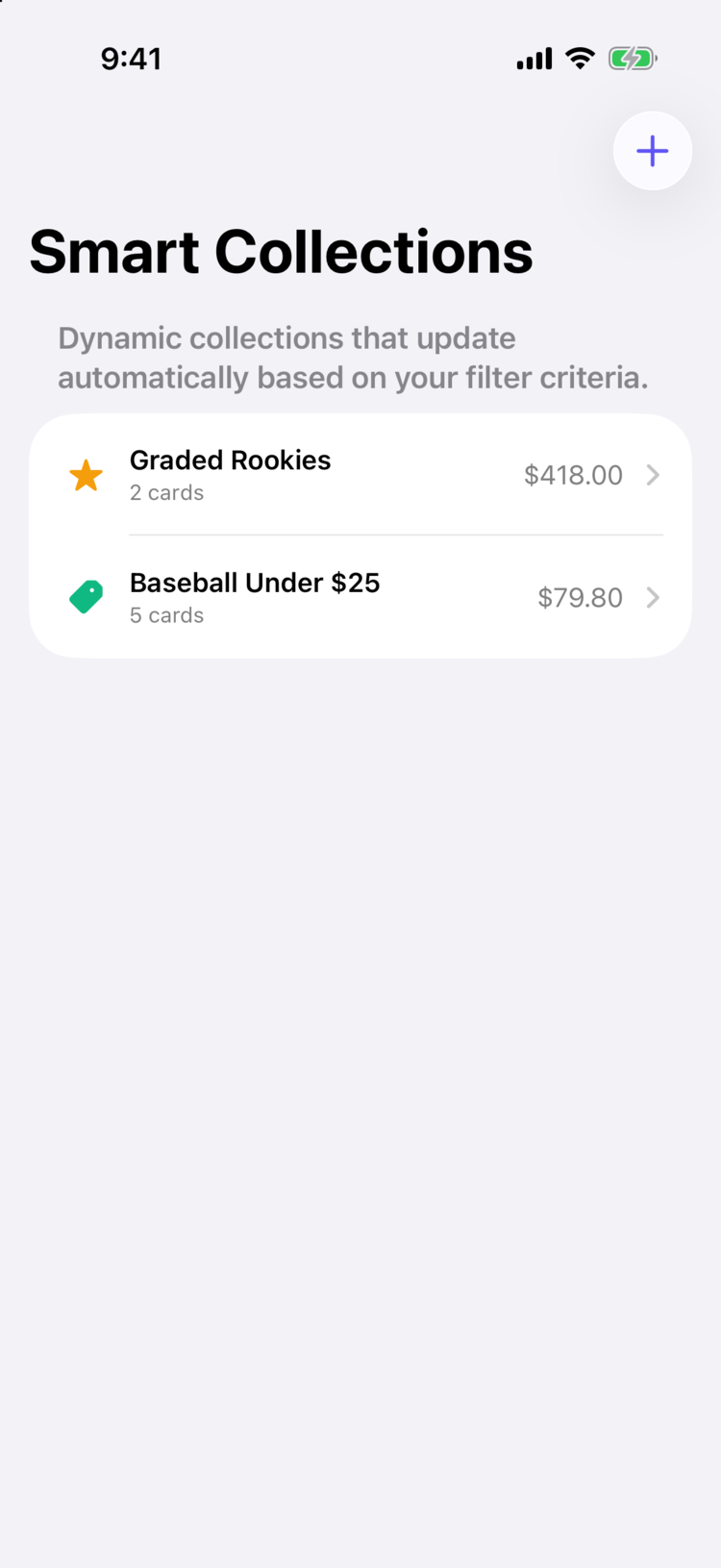
Creating a Smart Collection
- Go to Collection, then Smart Collections.
- Tap + (or Create Smart Collection).
- Fill in the editor (below) and save.
You can also save a search or filter as a Smart Collection from the Collection search or any card list.
The editor
- Appearance: Name, Icon, and Color.
- Search Terms: words such as “Topps Judge.” “Cards must match all terms. Leave empty to skip text matching.”
- Filters: Sport, Condition, Grading Company, and Status (Personal Collection, For Sale, or Sold). Any means no filter.
- Year Range: From and To.
- Card Attributes: Rookies, Autographs, Relics, Numbered, and 1st Bowman.
- Value Range: Minimum Value and Maximum Value.
- Preview: how many cards match right now.
Using a Smart Collection
- Open it to see its cards.
- Edit criteria changes its rules.
- Enter Show Mode opens its cards in Show Mode.
- Swipe a Smart Collection for Edit or Delete.
Limits: up to 3 Smart Collections on the free plan (“Free accounts can create up to 3 smart collections. Upgrade to Pro for unlimited smart collections.”). FTH Pro: unlimited.
What it gives you: collections that keep themselves current. “Graded rookies worth over $100” or “all my 1st Bowman autos” stays right every time you add a card, with no sorting by hand. Paired with Show Mode, a Smart Collection becomes a ready-made display for a show.
15. Custom Collections
Custom Collections are groups you fill by hand, such as a team, a binder, or a show box. In the app: “Organize your cards into custom groups. Assign any card to multiple collections.”
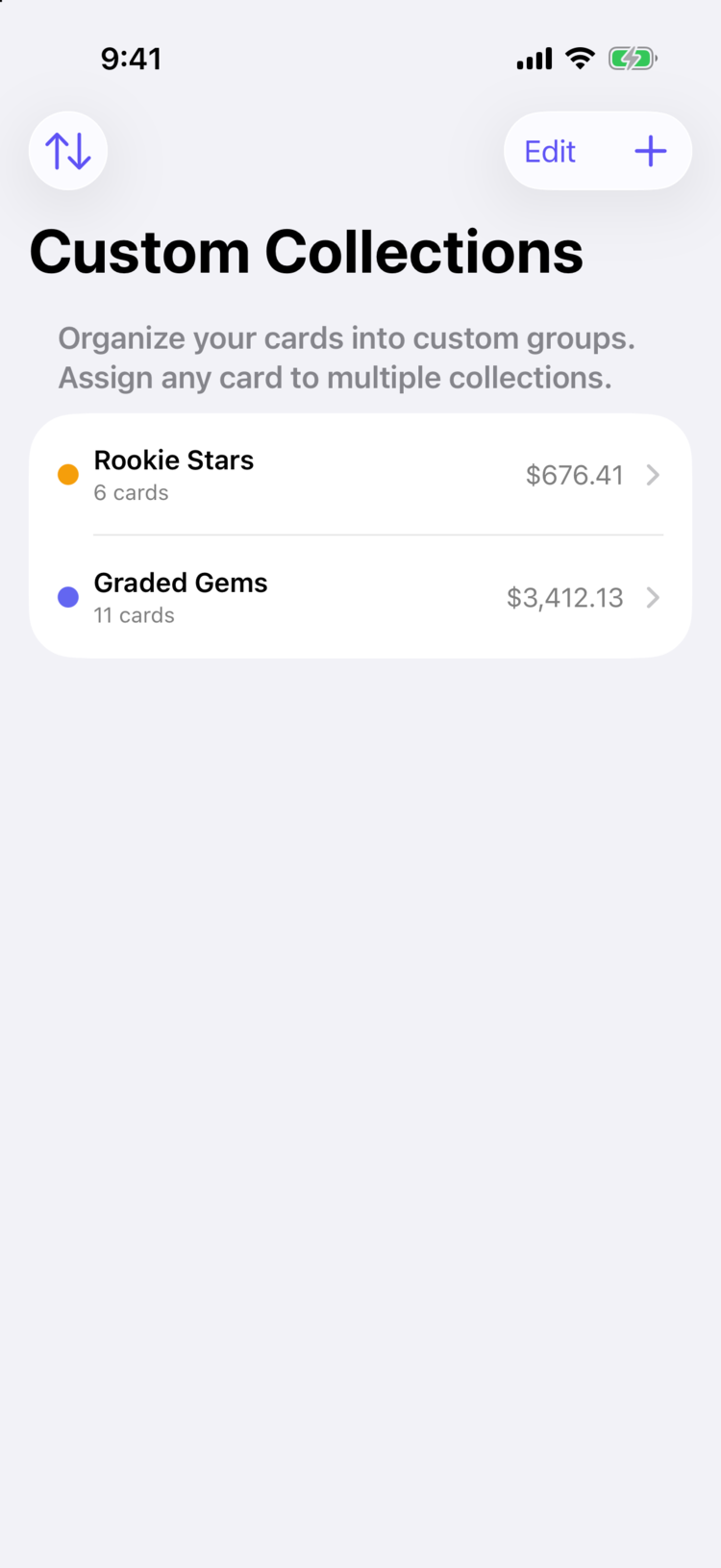
- Create: go to Collection, Custom Collections, and tap + (or Create Collection). Enter a Collection Name and an optional Description. The sheet lists your Existing Collections so you avoid duplicates.
- Add cards: check the collection in a card’s Collections section, or select cards in a list and use Add to.
- Sort: the sort button orders your collections.
- Rename or Delete: swipe a collection, or touch and hold it. Deleting a collection asks first and does not delete its cards.
Limits: up to 10 Custom Collections on the free plan (“Free accounts can create up to 10 collections. Upgrade to Pro for unlimited collections.”). FTH Pro: unlimited.
What it gives you: sort your cards the way you think about them. A card can be in more than one collection, so the same Judge rookie can sit in “Yankees” and in “Show box 2.”
16. Set Checklists
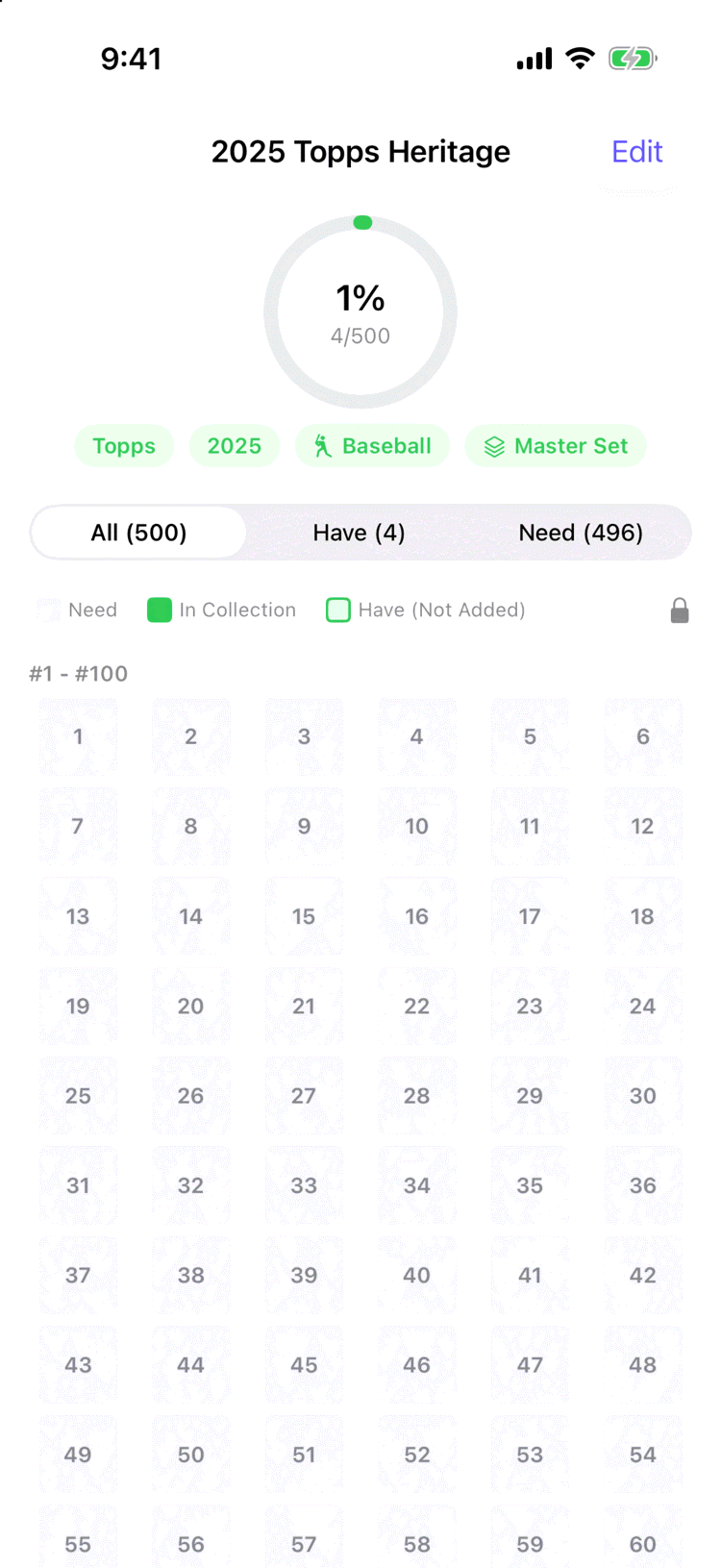
Set Checklists show how close you are to completing a set: which cards you have and which you still need.
Starting a checklist
Go to Collection, then Set Checklists. There are two ways to start.
Discover Sets (from cards you already own):
- Tap Discover Sets. FTH looks through your collection for sets you own cards from and lists them (“N sets available to track”), with the year, brand, and how many cards you own.
- Tap Track next to a set.
- Enter the total number of cards in the set (“You own N cards from this set. How many total cards are in” the set).
Sets you already track say Tracked. If none are found: “Add cards with set names to discover trackable sets.”
Create Manual Checklist:
- Tap Create Manual Checklist.
- Enter Set Name, Year, Brand, Sport, and Total Cards in Set.
- Choose a Set Type:
- Base Set: “Only base cards count toward set completion.”
- All Cards: “All cards including variants count toward set completion.”
- Specific Variant: enter a Variant Name (for example Refractor or Gold Prizm). “Only cards matching this variant count toward set completion.”
- Save. FTH tells you how many cards it matched.
“Cards in your collection auto-match when Year, Brand, and Set Name match exactly.” Keep those three fields spelled the same on your cards so they count.
Using a checklist
- Progress: how many of the set’s cards you own, as a count and a percent. Reaching milestones shows a ”% Complete” celebration.
- The grid: one square for every card number in the set. Filter it with All, Have, and Need. The grid starts locked; tap the lock button to unlock it. When unlocked, tapping a number you own opens that card, and tapping a missing number marks it as owned by hand (tap again to unmark). That is useful for cards you own but have not added to FTH. Touch and hold a card you own for View Card.
- Linked Cards (N): the cards from your collection counted toward this set.
- Edit Set Details: change the name, year, brand, sport, total, and notes.
- Re-match Cards from Collection: finds cards you added since the checklist was made.
- Share Need List: shares the list of card numbers you still need.
- Stop Tracking Set: removes the checklist. Your cards stay in your collection; they are not deleted.
If you own a card numbered higher than the set’s total, FTH warns Cards exceed set size and offers Fix to raise the total.
Limits: up to 3 checklists on the free plan (“Free accounts can track up to 3 set checklists. Upgrade to Pro for unlimited checklists.”). FTH Pro: unlimited.
What it gives you: no more guessing which numbers you are missing. The Need list is ready to show a seller at a table or send to a trading partner.
17. Wishlist
The Wishlist holds cards you are hunting. In the app: “Cards you’re hunting. Share your list with other collectors at shows.”
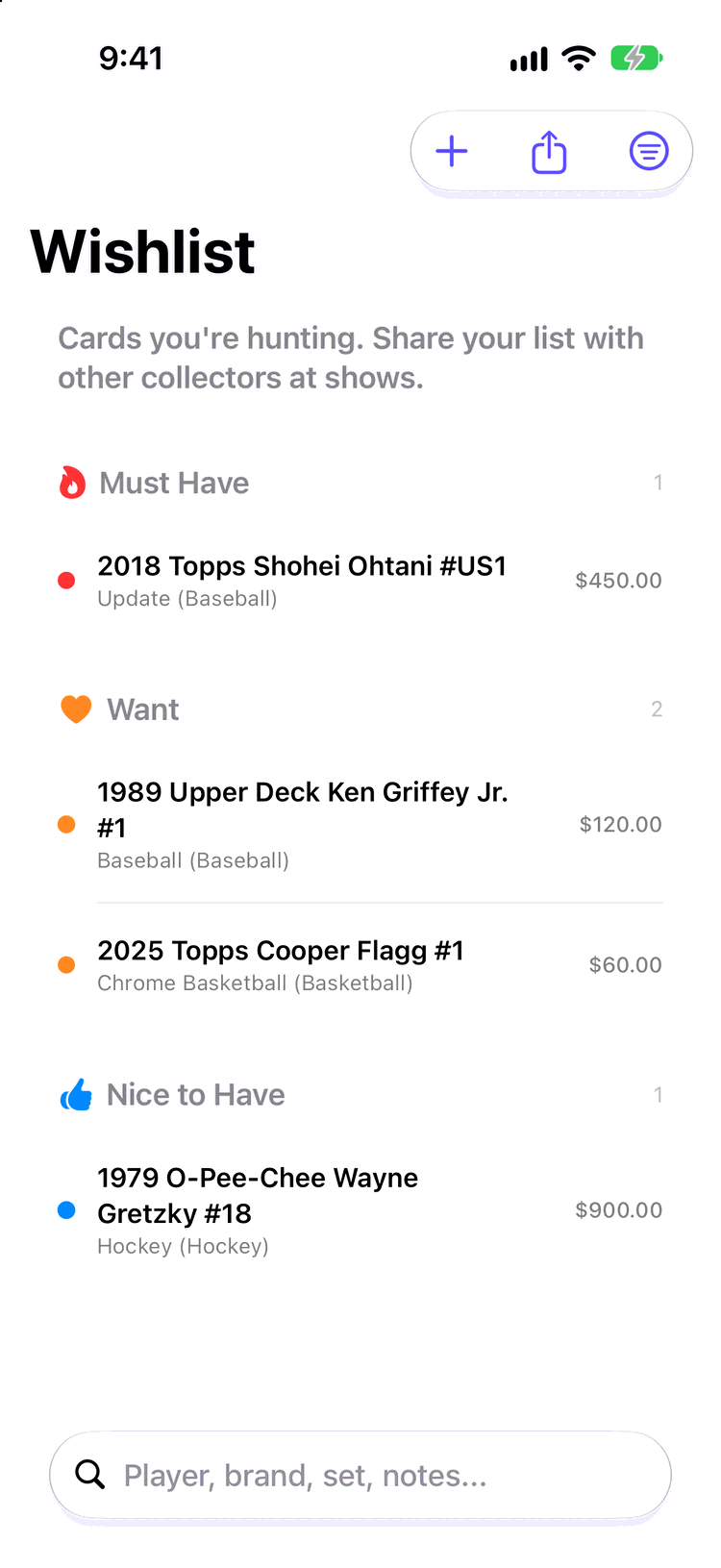
To add a card you want:
- Go to Collection, then Wishlist.
- Tap + (or Add to Wishlist).
- Fill in Card Identity: Player Name, Year, Brand, Set Name, Card Number (optional), Variant (optional), and Sport.
- Pick a Priority: Must Have, Want, or Nice to Have.
- Under Details, enter a Target Price (max you’d pay) and any Notes.
- Tap Done.
Other actions:
- Share: the share button sends your list of cards you still want.
- Filter and sort: the menu at the top filters by sport and can Show Fulfilled items.
- Got It: swipe right on an item (or use its menu) when you get the card. FTH opens the Add Card form already filled in from the wishlist item; when you save, the item is marked fulfilled.
- Edit and Delete: swipe left. A deleted item can be undone for a few seconds.
What it gives you: walk into a show knowing exactly what you want and the most you will pay for it. When you land a card, Got It moves it into your collection without typing it twice.
18. Grading Tracker
The Grading Tracker follows cards you have sent to a grading company. In the app: “Track cards sent to PSA, BGS, SGC, or CGC. Update status as they move through grading.”
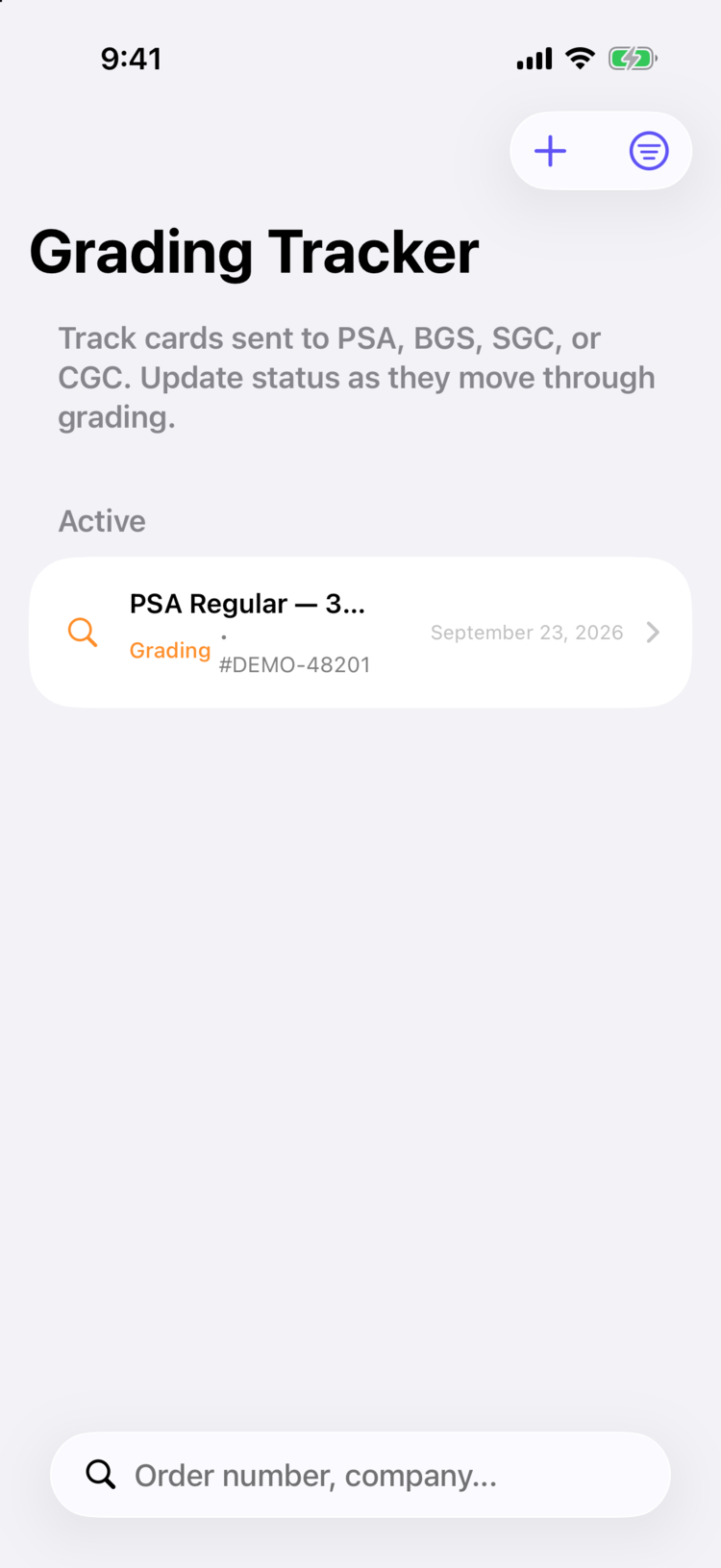
Starting a submission
- Go to Collection, then Grading Tracker, and tap + (or New Submission). Or open a raw card’s page, tap …, then Submit for Grading.
- Choose the Grading Company and Service Level (for example PSA Regular or BGS Express). FTH shows an approximate cost per card and the Est. Turnaround in days for the level you pick. These are estimates; check the company’s current prices.
- Under Select Cards, check the cards in this submission (“Select at least one card to submit for grading.”).
- Under Details, enter the Order Number, Submitted Date, and Notes.
- Under Shipping, enter the Carrier, Tracking Number, Shipping Cost, and Insurance Value.
- Check the Cost Summary: Per-Card Cost, Grading Subtotal, and Estimated Total, then save.
Submission statuses
Preparing, Submitted, Received, Grading, Graded, Shipped Back, and Complete. A submission can also be Cancelled or Lost.
A submission’s page
- Order #, and an Overdue badge if it is past its expected return date.
- Status Timeline: each step and when it happened.
- Cards, Shipping (carrier, tracking, and return tracking), Submitted and Expected Return dates, Costs, Notes, and Dates.
- Advance to the next status: moves the submission to its next step.
- Record Results: “Record the grades returned for each card.” For each card, enter the Grade (or Authentic (No Numeric Grade)) and Cert Number, then tap Save. Each card in your collection is updated to graded.
- Edit, Cancel Submission, and Delete (“This submission will be removed from your tracker.”).
The list groups submissions into Active and Completed. Show Completed in the filter menu shows or hides finished ones.
What it gives you: one place to see what is out for grading, what it cost, and when it should come back, with an Overdue flag when a submission runs late. Recording results updates every card at once, so your collection shows the new grades without editing each card.
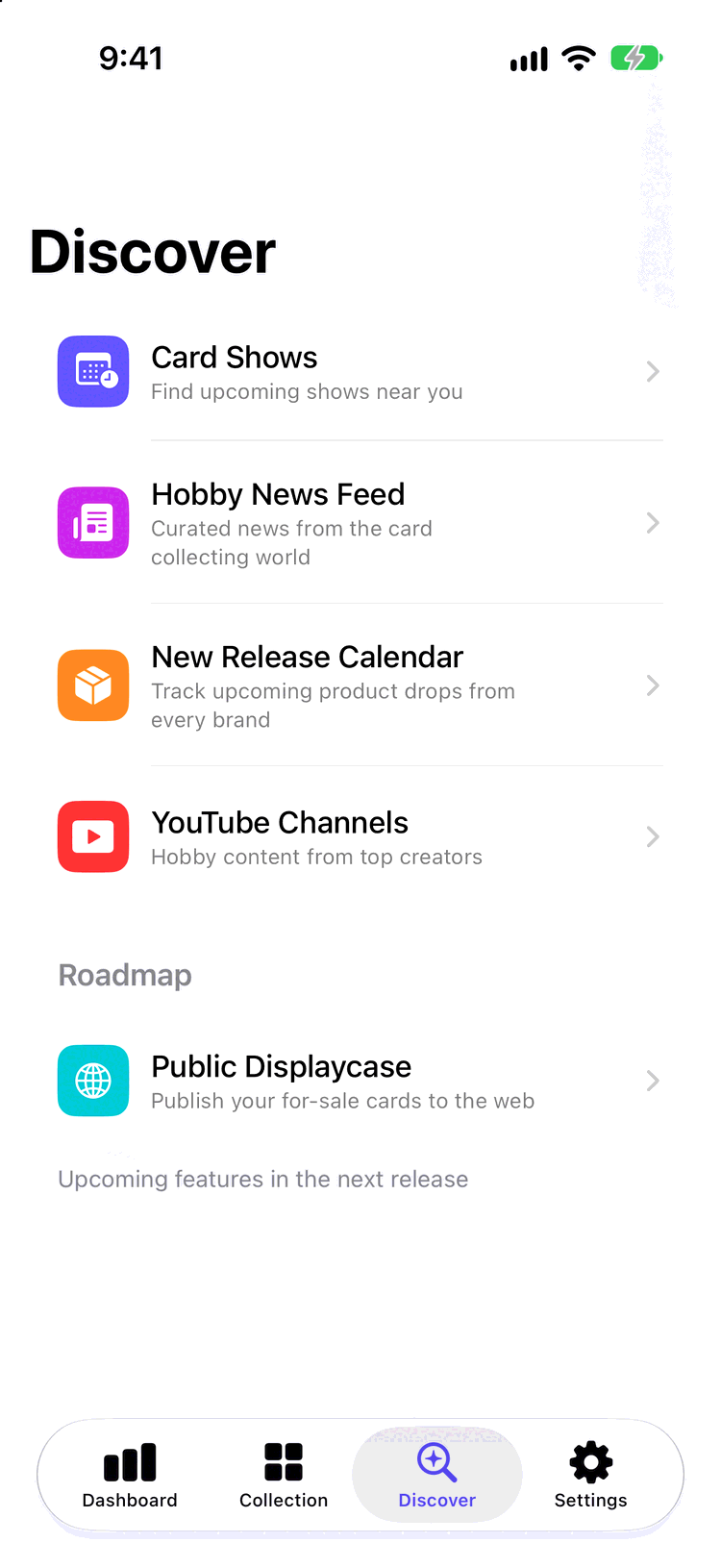
19. Discover: card shows, news, releases, and videos
Discover works with or without signing in.
19.1 Card Shows
“Find upcoming shows near you.”
To find shows:
- Open Discover, then Card Shows.
- Choose Near Me or By State.
- Near Me uses your location and a distance: 25, 50, 100, or 250 mi. On the free plan, 25 and 50 miles are available; 100 and 250 show a lock and open FTH Pro.
- By State (FTH Pro) lets you pick any state to see its shows. On the free plan it shows FTH Pro Feature: “Browse card shows by state with FTH Pro. Upgrade to search all 50 states.”
- Pick When: All, Weekend, This Month, or Past (shows from the last 30 days).
- Switch between List and Map. On the map, the location button centers on you.
In the list, shows happening right now appear first under Happening Now. Each row shows the date, how many days it runs, the place, and the distance.
A show’s page (Show Details):
- The name, dates (with a Multi-day label when it runs more than one day), and times.
- Location, with Get Directions, which opens Apple Maps.
- Details: Admission and Tables, when known.
- About: the organizer’s description.
- Source: View on the source opens the listing where FTH found the show.
- Share: sends the show’s name, date, place, admission, and a link to FTH.
- A note: “Show details may change without notice. Please confirm dates, times, and location with the organizer before making plans to attend.” And: “When you get there, tell them you found the show on FTH!”
When nothing shows up: No Shows Found with Try Again, or messages such as “No shows this weekend.” or “No shows in the next 30 days.” If location is off: Location Access Needed, with Enable Location or Open Settings. If you are offline, FTH shows the shows it saved from your last search.
To add a show you run or know about, use the form on fthcards.com.
What it gives you: never miss a show near you, with directions, admission, and table counts in one place, whether you are buying or planning where to set up your suitcase.
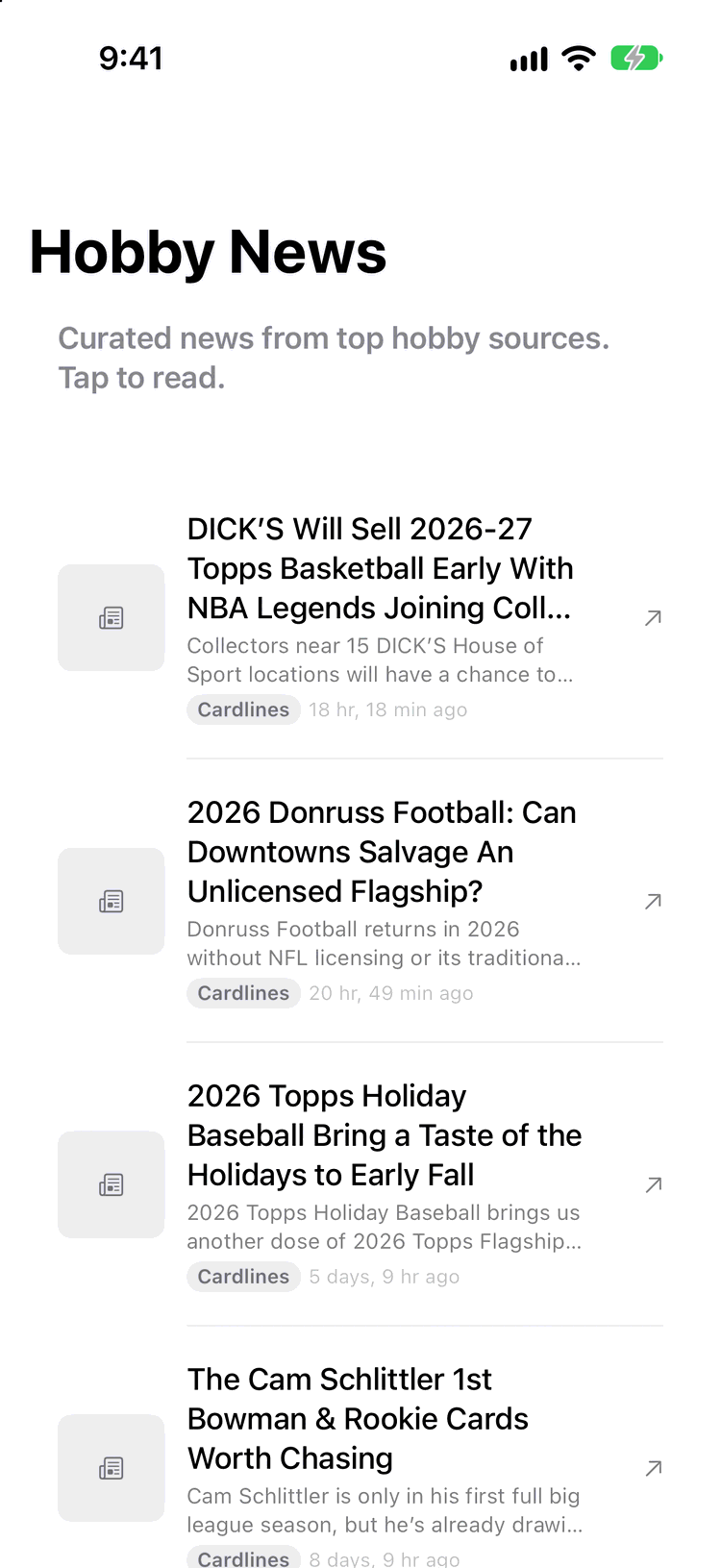
19.2 Hobby News Feed
“Curated news from top hobby sources. Tap to read.” Each story shows its source and how long ago it was posted. Tap a story to open it in your browser.
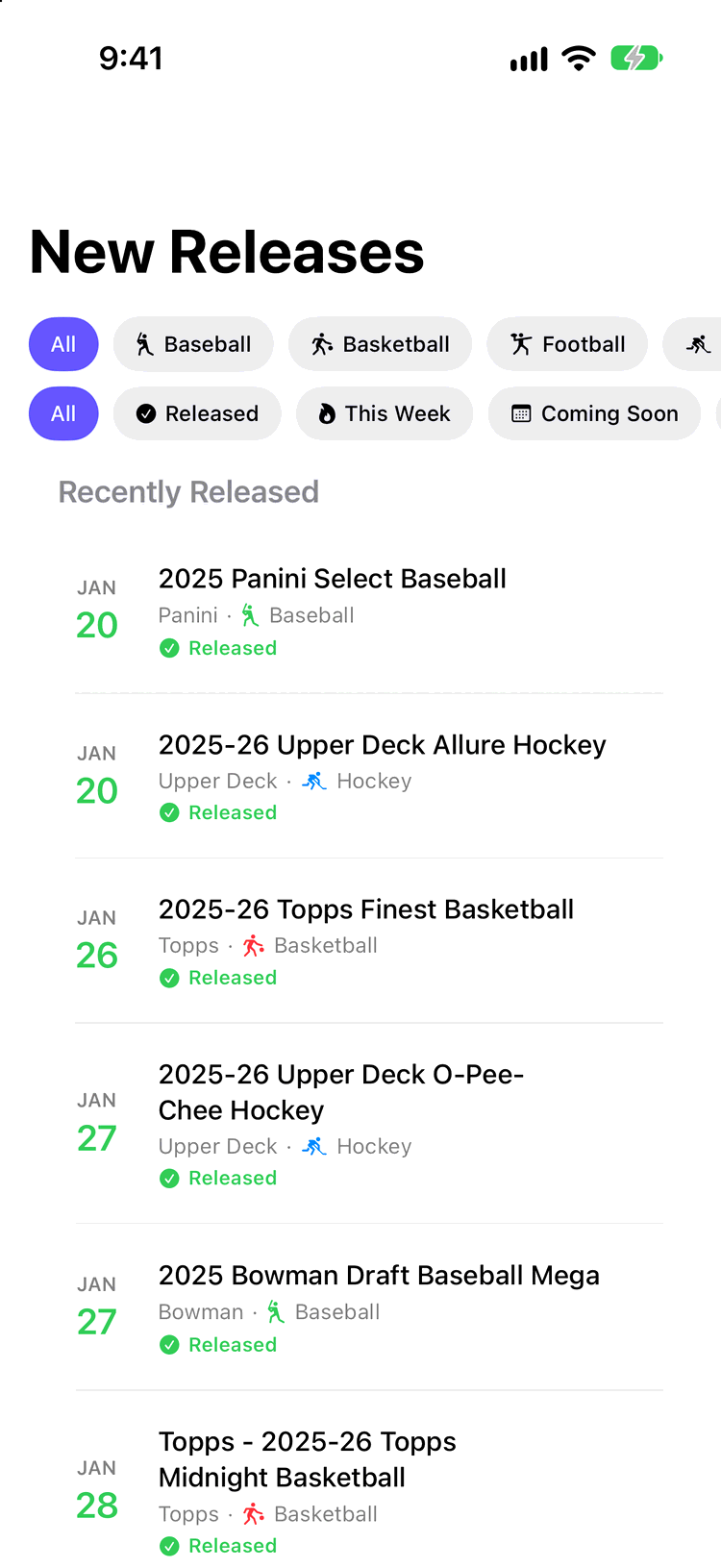
19.3 New Release Calendar
“Track upcoming product drops from every brand.”
- Filter by sport (All, Baseball, Basketball, Football, Hockey, and Soccer) and by status (All, Released, This Week, Coming Soon, and TBA).
- Tap a release for Release Details: Release Date, Brand, MSRP, Formats, About, and links to View Checklist and View Source.
- “Release dates and pricing may change without notice. Please confirm details with your local card shop or retailer.”
What it gives you: plan your budget around the products you care about, and see the checklist before you buy.
19.4 YouTube Channels
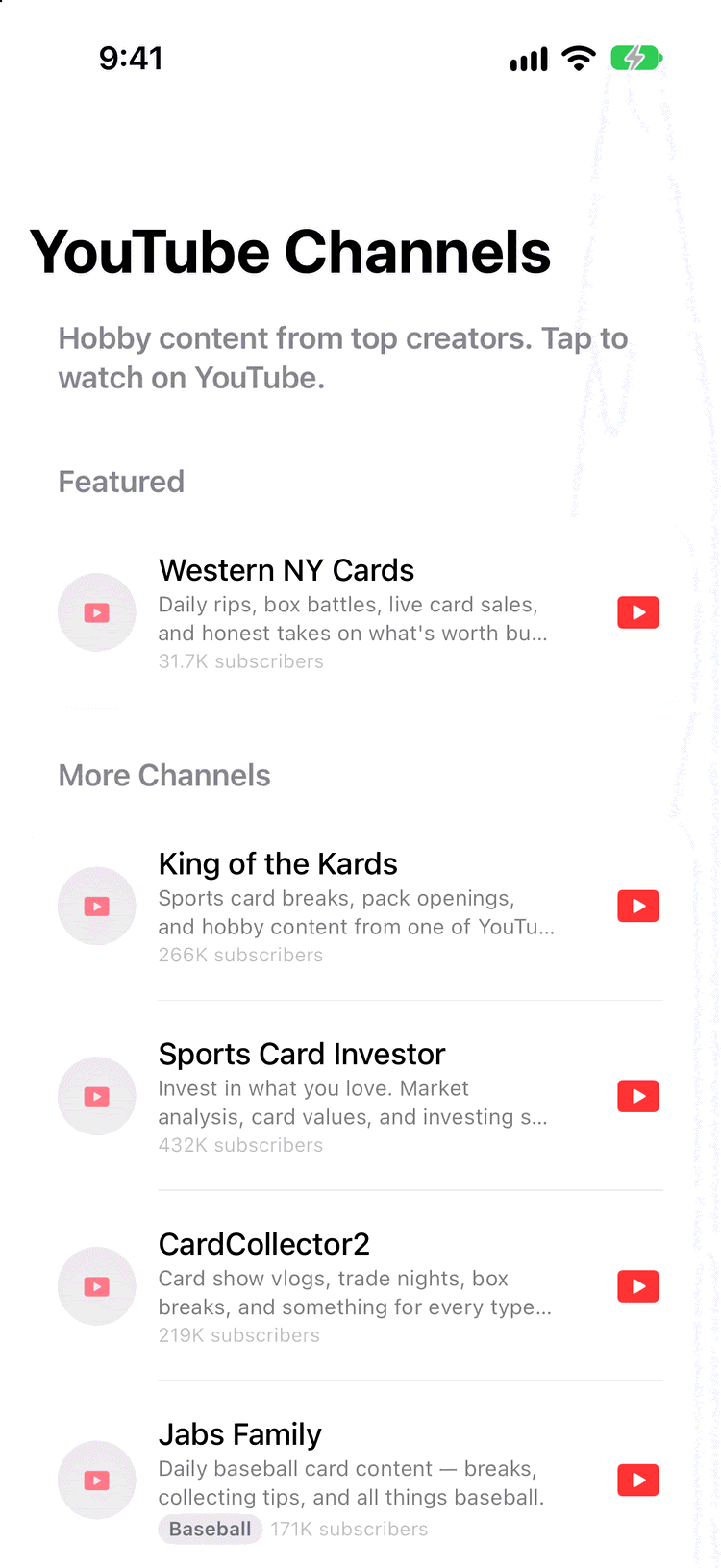
“Hobby content from top creators. Tap to watch on YouTube.” Featured channels are at the top, with subscriber counts. Tapping a channel opens the YouTube app, or YouTube in your browser.
19.5 Roadmap
“Upcoming features in the next release.” Items here are not available yet. Public Displaycase (“Publish your for-sale cards to the web”) is listed; tapping it says “This feature is in development. Stay tuned!”
If any Discover feed cannot load, it says Unable to Load with Try Again.
20. Settings
Settings, from top to bottom.
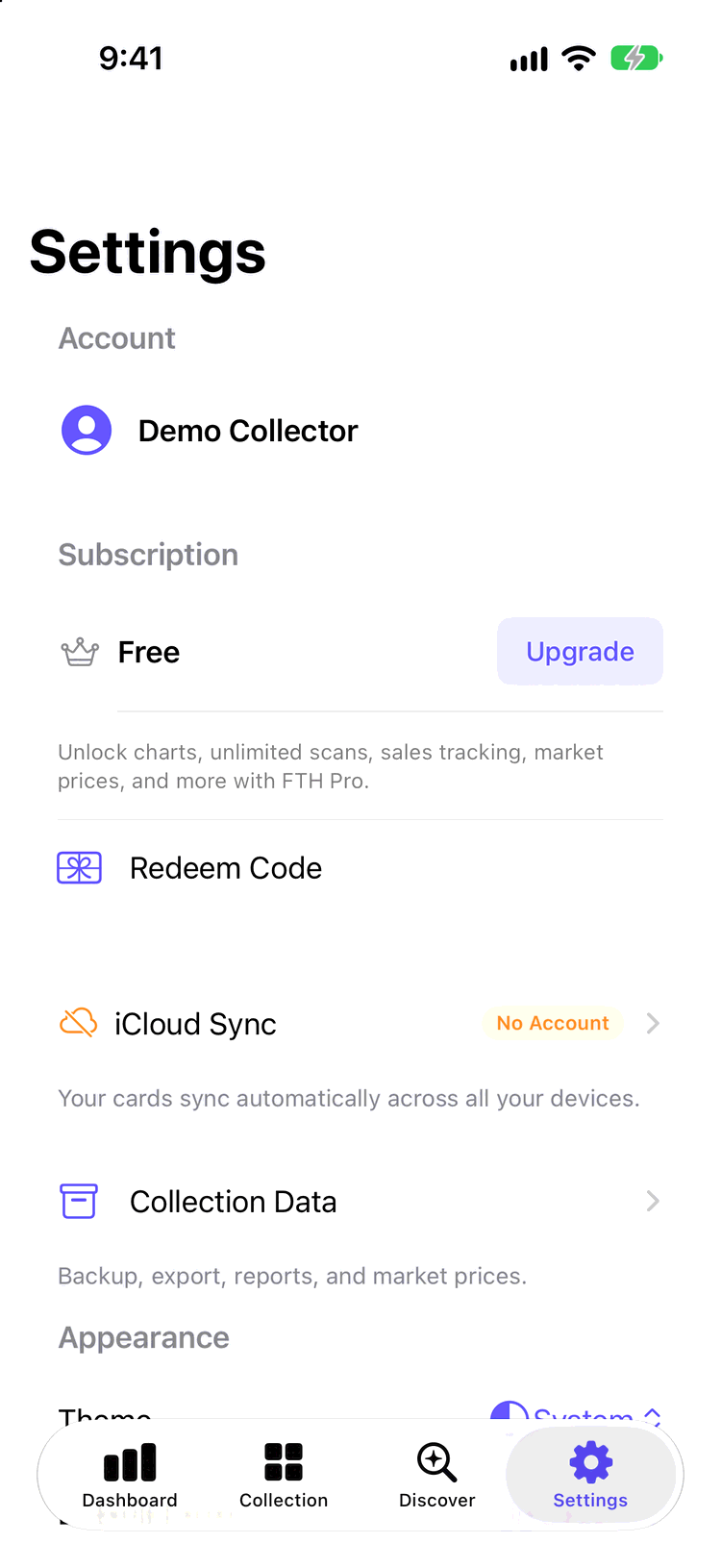
Account
Your name and email from Sign in with Apple. If your name is missing, see “If your name is missing” in section 2.
Subscription
- Your plan: Free, Pro Monthly, or Pro Annual, with Renews and the date for subscriptions.
- On the free plan: Upgrade, with “Unlock charts, unlimited scans, sales tracking, market prices, and more with FTH Pro.”
- With FTH Pro: Manage Subscription opens Apple’s subscription settings, where you can change or cancel.
- Redeem Code: enter an App Store offer code.
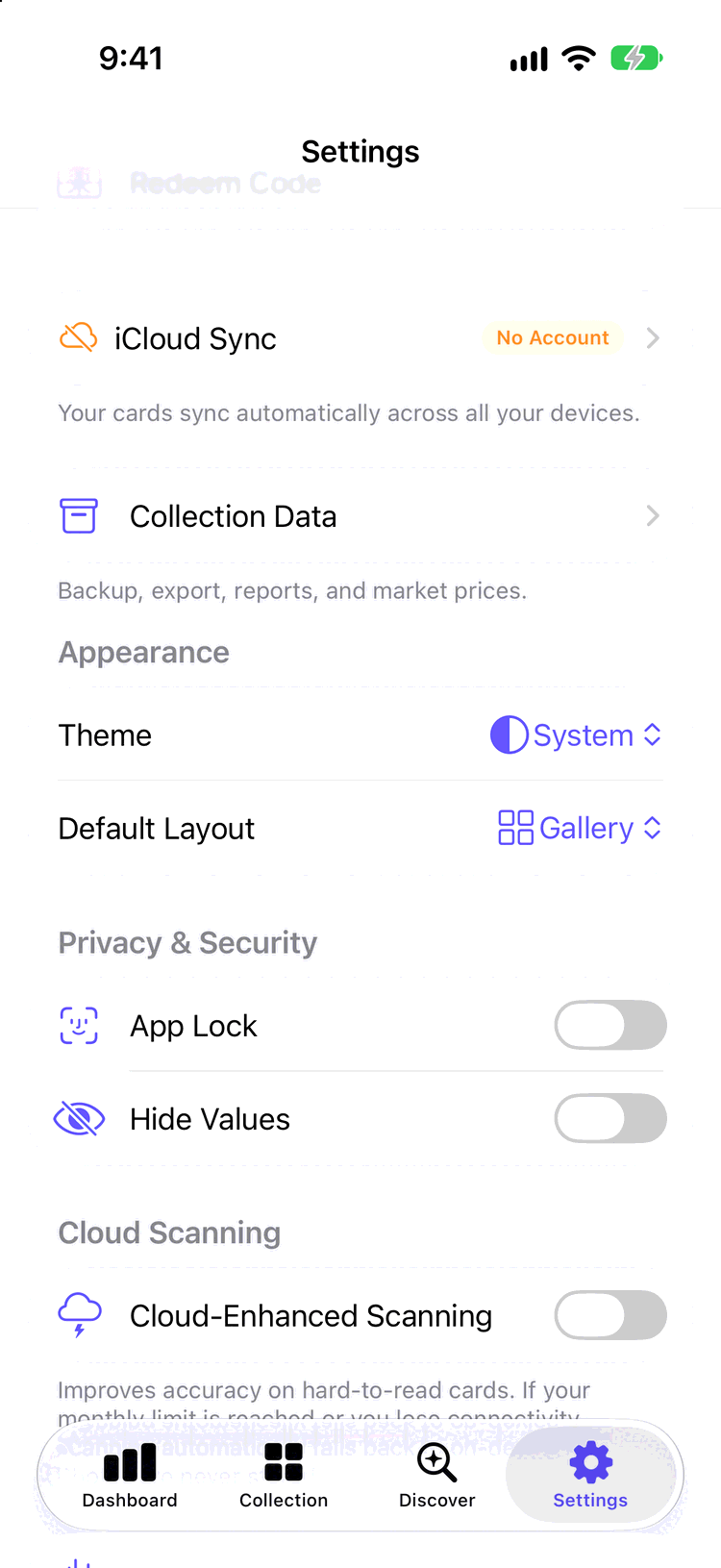
iCloud Sync
Shows iCloud Sync with a status: Synced, Syncing…, Error, No Account, Off, or Checking…. “Your cards sync automatically across all your devices.” Tap it for Sync Details. See “iCloud sync.”
Collection Data
“Backup, export, reports, and market prices.” See “Collection Data: backup, spreadsheets, and reports.”
Appearance
- Theme: System (follows your iPhone), Light, or Dark.
- Default Layout: Gallery, Grid, or List, the layout card lists start with.
Privacy & Security
- App Lock: when on, FTH asks for Face ID, Touch ID, or your passcode every time you open it or come back to it. Turning it on asks you to confirm who you are first; if that fails: “Could not verify your identity. App Lock was not enabled.” If you cancel on the lock screen, tap Unlock with Face ID (or Touch ID) to try again.
- Hide Values: replaces dollar amounts throughout the app with dashes.
Whether App Lock is on or not, FTH covers its screen with the FTH logo when you switch apps, so your collection does not show in the app switcher.
What it gives you: App Lock keeps your collection and sales private if someone else picks up your phone. Hide Values lets you show off your cards to friends, or hand your phone to someone, without showing what everything is worth.
Cloud Scanning
- Cloud-Enhanced Scanning: on or off. See “Cloud-Enhanced Scanning.”
- Cloud Scans Remaining: “N of 25” this month, shown on the free plan when cloud scanning is on.
- “Improves accuracy on hard-to-read cards. If your monthly limit is reached or you lose connectivity, scanning automatically falls back to on-device AI. Photos are never stored.”
Magic Scan Data
When you scan, FTH keeps the photos and what it read on your device, so a scanning problem can be looked into later.
- Summary: Total Scans and Storage Used.
- Share Magic Scan Data: send it only if FTH support (support@fthcards.com) asks for it, to help improve Magic Scan.
- Clear All Data: permanently deletes these saved scan photos and readings, and frees the storage. It does not delete your cards.
- “Your Magic Scan data is private by default.” It stays on your device and is never sent automatically.
About & Support
- App: Version and Build. Include both when you write to support.
- Support: Website (fthcards.com) and Email Support (support@fthcards.com).
- Replay Welcome Tour.
- Legal: “FTH is a collection tracking tool. Sale records, prices, and profit/loss figures are for personal reference only and do not constitute tax, legal, or financial advice. Please consult a qualified tax professional regarding any reporting obligations.”
The version also shows at the bottom of the About & Support row.
Sign Out
Asks Sign Out?: “Your cards will remain synced in iCloud.” After you sign out, FTH returns to guest mode (Discover and Account).
Delete Account & Data
Permanently deletes your account data. The Delete Account & Data screen says: “This will permanently delete all your cards, collections, photos, and account data from this device and iCloud. This action cannot be undone.”
- Make a backup first if you might want your cards later. See “Backup & Restore.”
- Type DELETE to confirm, or tap Cancel.
21. Collection Data: backup, spreadsheets, and reports
Go to Settings, then Collection Data.
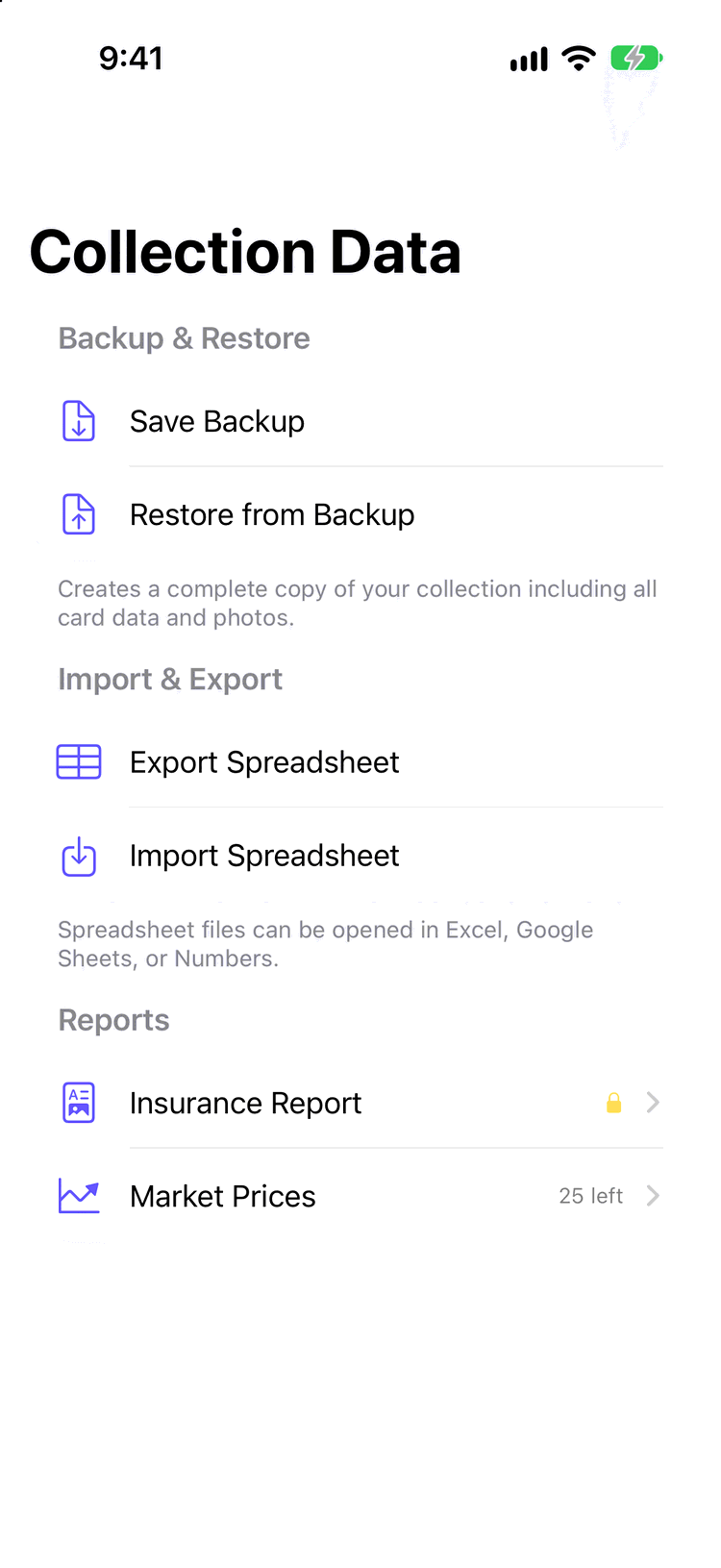
Backup & Restore
“Creates a complete copy of your collection including all card data and photos.”
To make a backup:
- Tap Save Backup. FTH makes a .zip file with your cards and photos.
- Save it to Files, AirDrop it, or send it anywhere you like. Keep a copy somewhere other than your phone.
To restore from a backup:
- Tap Restore from Backup and pick a backup .zip.
- Check the preview: Backup Info and the Restore Plan, which says “N new cards will be added” and “N cards already in your collection (will be skipped).”
- Tap Restore. When it finishes you see Restore Successful and “All data verified.”
Restoring never removes cards you already have. If everything is already there: “Your collection already has all cards from this backup. Nothing to restore.”
What it gives you: a complete copy of your collection, photos included, that you control. Restore is safe to run any time, because it only adds the cards you are missing.
Import & Export
“Spreadsheet files can be opened in Excel, Google Sheets, or Numbers.”
- Export Spreadsheet: saves your collection as a .csv file.
- Import Spreadsheet: adds cards from a .csv file.
To import a spreadsheet:
- Tap Import Spreadsheet and pick your .csv file.
- FTH matches your spreadsheet’s columns to card fields and labels each match Exact match, Likely match, Possible match, or Not mapped. Change any match, or set it to Ignore. “Player Name must be mapped to proceed.”
- Tap Next: Preview to see the first 5 rows as they will be imported.
- Tap Import (“Importing cards…”).
- Import Complete shows how many cards were imported and how many rows were skipped. Tap Done.
What it gives you: bring a collection you already track in a spreadsheet or another app into FTH without retyping it, and take your data out any time.
Reports
Insurance Report (FTH Pro): a PDF for your insurance company or an appraisal.
- Tap Insurance Report.
- Fill in Report Details: Report Title, Owner Name, Date, Appraiser (optional), and Notes (optional).
- Choose Cards to Include: All Cards, Cards with Values, Graded Only, or Above Minimum Value (with a Minimum Value).
- Choose what to Include: Card Photos, Grading Information, and Estimated Values.
- Check the Report Preview: the card count and Total Est. Value.
- Tap Generate PDF Report, then share, save to Files, or print.
On the free plan this row shows a lock and opens Insurance & Appraisal Reports, which describes the feature, with Upgrade to FTH Pro.
What it gives you: a documented record of what you own and what it is worth, with photos, ready for an insurer or an appraiser if you ever need to file a claim.
Market Prices
Your lookup usage (“N left” on the free plan) and price settings. See “Market price settings” in section 11.
Preferences
Reset Add Card Choice appears when you checked Remember my choice on Add a Card. Tap it to see all four ways to add a card again.
22. FTH Pro: free versus Pro
FTH is free to use, with no limit on how many cards you add. FTH Pro removes the free limits and adds analytics, reports, and selling tools.
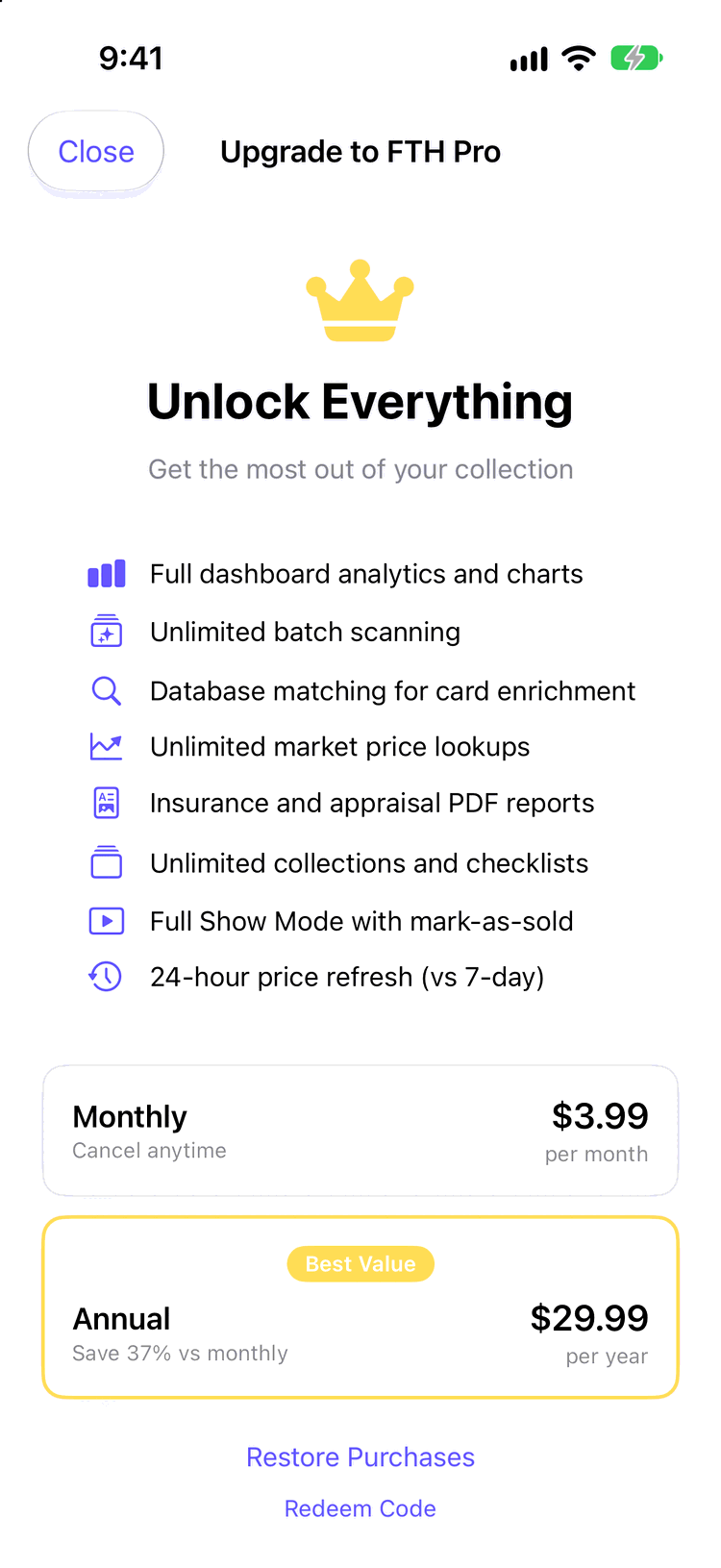
What each plan includes
- Cards in your collection: no limit on either plan.
- Magic Scan on your phone: unlimited on either plan.
- Cloud-Enhanced Scanning: free, 25 a month. Pro, unlimited.
- Batch Magic Scan: free, 5 cards per batch. Pro, unlimited.
- Database Match after a scan: Pro only.
- PSA cert lookups: both plans.
- Market price lookups: free, 25 a month. Pro, unlimited.
- How long a found price is kept before refreshing: free, 7 days. Pro, 24 hours.
- Custom Collections: free, 10. Pro, unlimited.
- Smart Collections: free, 3. Pro, unlimited.
- Set Checklists: free, 3. Pro, unlimited.
- Wishlist and Grading Tracker: both plans.
- Dashboard: free, card counts. Pro, value, invested, profit and loss, sold totals, and charts.
- Advanced Analytics (Portfolio, Sales, and Reports): Pro only.
- Show Mode: free, the first 25 cards. Pro, all cards, plus SOLD, Batch, and Share.
- Batch sale split: free, Even Split. Pro, Even Split, By Value, and Manual.
- Share as PDF (card, list, and Show Mode): Pro only.
- Insurance Report: Pro only.
- Card show search Near Me: free, 25 or 50 miles. Pro, up to 250 miles.
- Card show search By State: Pro only, all 50 states.
- Discover news, releases, and videos: both plans.
- iCloud sync, backup and restore, and spreadsheet import and export: both plans.
Prices
FTH Pro is $3.99 a month or $29.99 a year. The App Store shows the price in your own currency before you buy.
Upgrading
- Tap Upgrade in Settings, or tap any FTH Pro prompt.
- The Upgrade to FTH Pro screen opens with a heading about what you were trying to do (for example “You’ve used all 25 price lookups this month.” and “Pro makes them unlimited.”), then the list of Pro features.
- Pick a plan: Monthly (“Cancel anytime”) or Annual (“Save 37% vs monthly,” marked Best Value).
- Confirm the purchase with Apple.
- When it goes through, you see Welcome to Pro! “All Pro features are now unlocked. Enjoy!” Tap Let’s Go.
Also on this screen:
- Restore Purchases: if you already bought FTH Pro, for example on another device or before reinstalling.
- Redeem Code: enter an App Store offer code.
- Terms of Use and Privacy Policy links open fthcards.com.
- The fine print: “Payment will be charged to your Apple ID account at confirmation of purchase. Subscriptions auto-renew unless cancelled at least 24 hours before the end of the current period. Manage subscriptions in your Apple ID settings.”
- If plans cannot load: Plans unavailable, “Products may not be configured yet. Try again later.” with Try Again.
Canceling
Go to Settings, Subscription, Manage Subscription, or to your Apple ID’s subscription settings on your iPhone. You keep FTH Pro until the end of the period you paid for. Your cards stay; only the free limits come back.
23. iCloud sync
FTH syncs your collection through your own iCloud account. “Your cards sync automatically across all your devices signed into the same iCloud account.”
There is nothing to set up:
- Sign in to FTH on each device with the same Apple ID.
- Make sure iCloud is on in each device’s Settings app.
Settings, iCloud Sync, Sync Details shows:
- Last Sync (how long ago) and iCloud: your account state (Signed In, No Account, or Restricted).
- Retry Sync.
- How many changes came in (Imports) and went out (Exports) this session, and any Errors, with Recent Errors you can open.
- Sync Diagnostics: technical details for support.
Some settings sync too, such as the order of your status rows on the Collection tab.
What it gives you: add a card on your iPhone at a show and see it on your iPad at home. No separate account or server; your collection lives in your own iCloud.
24. Privacy and what is stored
On your device and in your iCloud
- Your cards, photos, collections, checklists, wishlist, grading submissions, and sales are stored on your device and synced through your private iCloud account.
- Magic Scan data (scan photos and what FTH read) stays on your device unless you choose Share Magic Scan Data. Clear All Data removes it.
- Your settings (theme, layout, App Lock, Hide Values, and your lookup and cloud scan counts) are stored on your device.
What leaves your device, and when
- Your Apple sign-in goes to Apple when you sign in. FTH receives your name and email from Apple.
- Card photos go to an AI service, through FTH’s server, only when Cloud-Enhanced Scanning is on and your phone’s reading is unsure. FTH says photos are never stored.
- A PSA cert number goes to PSA, through FTH’s server, when Magic Scan finds a PSA slab barcode.
- Card details (year, brand, set, player, number, and variant) go to SportsCardsPro when you look up or refresh a market price, or use Database Match.
- Your location and chosen distance go to FTH’s server when you search for card shows Near Me.
- Usage events go to TelemetryDeck as you use the app. User identifiers are double-hashed on your device before they are sent, so individual users cannot be identified.
- Purchases go through Apple when you buy, restore, or redeem.
130Point and eBay open in Safari only when you tap their links. For 130Point, your card details are copied to your clipboard, not sent.
Privacy features
- App Lock and Hide Values (see “Privacy & Security” in Settings).
- The app switcher shows the FTH logo instead of your collection.
Deleting your data
Settings, Delete Account & Data deletes your cards, collections, photos, and account data from this device and iCloud. For the full privacy policy, see fthcards.com/privacy.
25. Messages the app may show
Each message below shows what it means and what to do.
While scanning
- Camera Access Required: “Magic Scan needs camera access to photograph your cards. Open Settings to enable it.” Camera permission is off. Tap Open Settings and turn on Camera for FTH.
- “Photo appears blurry. Try holding your phone steadier or farther from the card.” The photo is not sharp. Retake it with steadier hands, 10 to 12 inches away.
- “Photo is too dark. Try adding more light.” Not enough light. Use the flashlight button or move to better light.
- “Photo is overexposed. Try reducing direct lighting.” Glare or too much light. Tilt the card away from the light.
- “Very little text detected. Try moving closer to the card.” FTH found almost no text. Move closer and keep the card inside the frame.
- “Text detected but hard to read. Try holding the card flat in better lighting.” Text was found but is unclear. Flatten the card and improve the light.
- “Year and brand not found. Make sure the full card is in the frame.” The small print with the year and brand was missed. Get the whole card inside the frame.
- We couldn’t read this card: almost no text was read. Fill in the fields yourself or tap Retake.
- A note that your device is warm: FTH uses a faster scan to protect your phone. Nothing to do, but check the results more closely.
- A note that the cert lookup failed: PSA could not be reached or did not answer. Check the fields; they come from the photo.
- A note that the daily lookup limit is reached: today’s PSA lookups on this device are used up. Try again tomorrow, or check the fields yourself.
- Duplicate Cert Number: “This cert is already in your collection.” That slab is already saved. Make sure you are not adding it twice.
- Enhancing with Cloud AI… and Scanned with Cloud AI: cloud scanning is working or finished. Nothing to do.
- “Cloud enhancement unavailable” (no internet connection): the phone’s reading is used. Nothing to do, or reconnect and scan again.
- Cloud scans used up. Scanning locally.: this month’s 25 free cloud scans are used. Keep scanning on your phone, or upgrade.
- “N of 25 cloud scans left this month.”: you are close to the free limit. Nothing to do.
- Batch Scan Limit: free batches stop at 5 cards. Tap Review Cards to save them, or upgrade.
While adding or editing
- “Possible duplicate: N similar card(s) found”: you may already have this card. You can still save.
- “Player name is required” or “Brand is required”: fill in that field.
- “Year must be between 1900 and” next year: check the year.
- “Invalid grade for” a grading company: that grade is not one the company gives. Check the grade.
- Card Saved! or Card Updated!: done. Tap Add Another or Done.
- Camera Not Available: “Camera is not available on this device. Use Photo Library instead.” Tap Library instead.
Limits and FTH Pro
- Collection Limit: 10 Custom Collections on the free plan.
- Smart Collection Limit: 3 Smart Collections on the free plan.
- Checklist Limit: 3 Set Checklists on the free plan.
- “All of your free lookups have been used this month”: 25 price lookups a month on the free plan.
- FTH Pro Feature in Show Mode: Show Mode shows 25 cards on the free plan.
- FTH Pro Feature in Card Shows: By State search is part of FTH Pro.
Each of these offers a way to upgrade.
Other messages
- Unable to Load: a screen or feed could not load. Pull down or tap Try Again.
- No Shows Found or Location Access Needed: see “Card Shows.”
- Sign Out?: “Your cards will remain synced in iCloud.”
- Authentication Failed: Face ID, Touch ID, or your passcode did not confirm, so App Lock was not turned on.
- Delete Failed: deleting your account data did not finish. Try again, or contact support.
- Data Error: FTH could not open its card storage. Restart the app. If it keeps happening, contact support before deleting anything.
- Plans unavailable: the App Store plans did not load. Tap Try Again later.
26. Troubleshooting
Magic Scan gets fields wrong
Use good, even light without glare, hold the phone 10 to 12 inches away, and keep the card flat and inside the frame. Try the 2x zoom for small cards. Fields with an orange dashed underline are the ones FTH is least sure of, so check those first. Turning on Cloud-Enhanced Scanning helps with hard-to-read cards.
A graded card’s details did not fill in from PSA
Make sure the barcode on the slab label is in one of your photos and not covered by glare. Lookups need an internet connection. Only PSA lookups are available; other companies’ slabs are read from the photo text.
My cards are not showing on my other device
- Check that both devices are signed in to the same Apple ID with iCloud on.
- Open Settings, iCloud Sync. If it says No Account, sign in to iCloud in your device’s Settings app.
- Tap Sync Details, then Retry Sync.
Large collections with many photos can take a while to sync the first time.
I bought FTH Pro but still see limits
Go to Settings, Subscription, tap Upgrade, then tap Restore Purchases. Make sure you are signed in to the App Store with the Apple ID you bought FTH Pro with.
No card shows appear near me
Allow location for FTH (Location Access Needed, then Open Settings), widen the distance, or set When to All. With FTH Pro you can also search By State. Shows come from public listings, so some areas have fewer.
A price lookup found the wrong card
Tap Not your card? Fix it, or choose your version from Pick Your Version. Adding the variant and card number to the card first gives better matches.
I deleted a card by mistake
Tap Undo in the bar at the bottom within about 5 seconds. After that, restore it from a backup (Settings, Collection Data, Restore from Backup), which adds back only the cards you are missing.
My spreadsheet import was refused
The Player Name column must be mapped. Check the column matches on the first step, and make sure the file is a .csv.
Values show as dashes
Hide Values is on. Turn it off in Settings, Privacy & Security.
The + button skips the Add a Card choices
You checked Remember my choice. Go to Settings, Collection Data, Preferences, and tap Reset Add Card Choice.
27. Getting help
- Email: support@fthcards.com, or tap Email Support in Settings, About & Support. Include the Version and Build shown in About & Support.
- Website: fthcards.com.
- Magic Scan problems: support may ask you to send your scan data with Settings, Magic Scan Data, Share Magic Scan Data. Only send it when asked.